To do
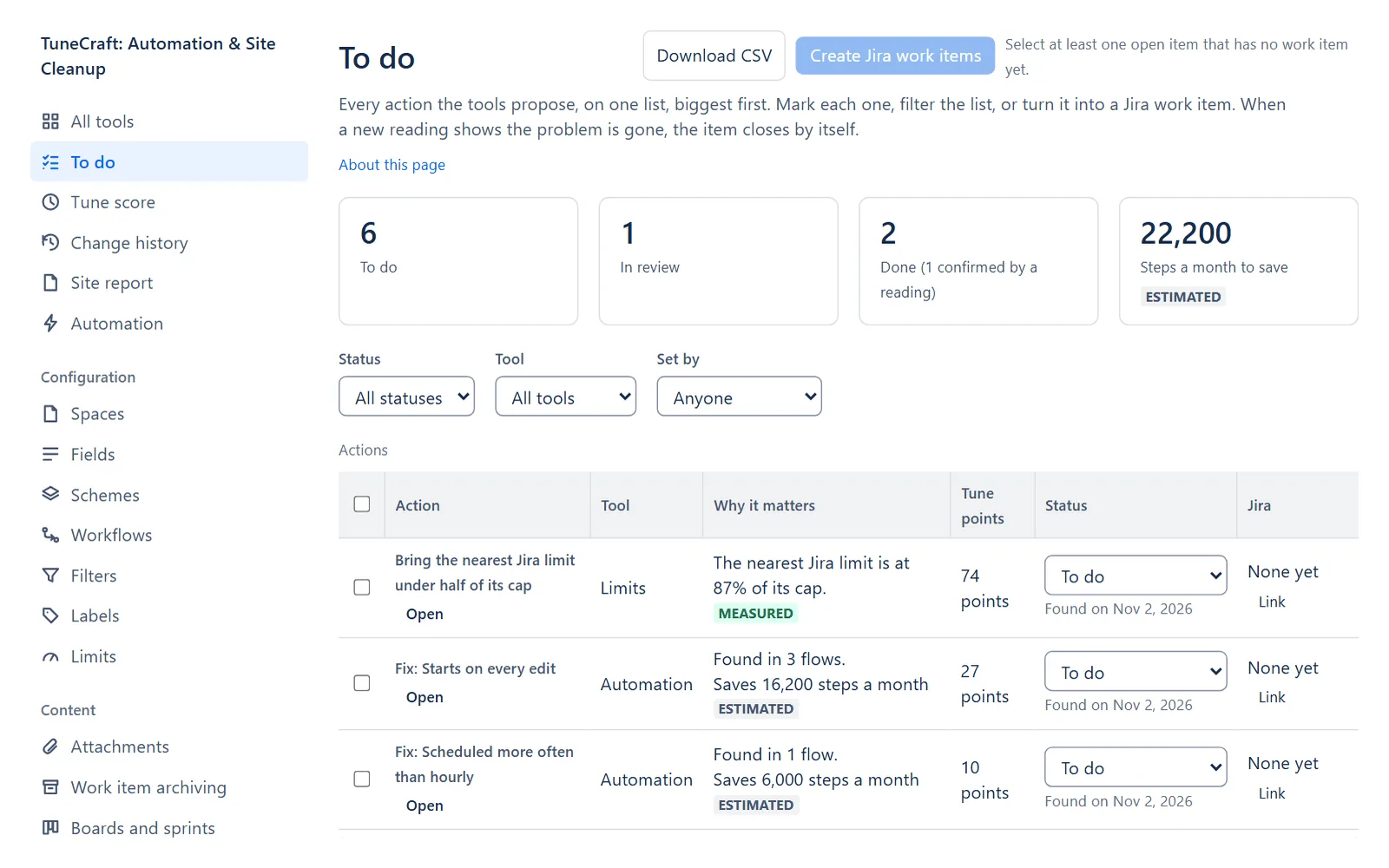
To do puts every action the tools propose on one list, biggest first. You mark each one, filter the list, or turn it into a Jira work item, and an item closes by itself when a new reading shows the problem is gone. It is for Jira admins, with a licence or a trial.
On this page
Where to find it
| Where | What is there |
|---|---|
| Apps > TuneCraft > To do | The list. It is at the top of the rail, just below All tools. |
| Apps > TuneCraft > All tools | How many items are open and the next three, beside the Tune score. See The main page. |
Where the actions come from
Each action comes from a tool's own reading. This page reads nothing more from Jira.
| Tool | What it adds |
|---|---|
| Automation | One action for each kind of finding, and one for the broken flows |
| Limits | The limit nearest its cap, once it is over half of it |
| Fields | Fields that may go |
| Spaces | Idle or empty spaces |
| Filters | Filters Jira refuses or whose owner is deactivated, and filters nobody uses |
| Schemes | Work types and priorities on no work item |
Labels, Attachments, Workflows, Deactivated people, Work item archiving and Boards and sprints add no items. A part of a tool with no reading adds no item: the list names those parts under Not read (not read yet, read in part only, or its check is turned off). A part read in part can list what it found but cannot close an item.
Read the list
The tiles at the top count To do, In review, Done (with how many a reading confirmed) and Steps a month to save (estimated). The columns are Action (a link to the page that does the work), Tool, Why it matters, Tune points, Status and Jira, in the order of the points an item wins, then the steps a month it saves, then its count. Filter by Status, Tool and Set by (you, another admin, a reading, or nobody yet). Download CSV writes the rows shown. TuneCraft keeps only an action's id, its status, who set it, the day and the work item key.
Set a status
An item is To do, In review, Done or Ignored.
Step 1: Tick the rows
Tick one or more rows.
Step 2: Apply a status
Under Set the status of the selected items, choose a status and select Apply to selected. To put them back, select Undo in the message that appears.
A Done you set stays Done. It is marked "Not confirmed yet" until a new reading shows the problem gone, and "Not confirmed: the latest reading still shows the problem" if it does not.
Note: Ignored here does not change the Tune score, because the problem is still there. To leave a finding out of the score, ignore it in its own tool.
Create Jira work items
TuneCraft creates one work item for each action you select, as you, with a link back to the list and what to do. A call to Jira holds at most 25 work items, so a larger selection goes in more than one call.
Step 1: Tick the open items
Tick the open items that have no work item yet.
Step 2: Select the button
Select Create Jira work items for N selected. A dialog opens.
Step 3: Pick a space and a type
Pick a space the people who will do the work can see, then a work item type. Sub-task types are not offered: a sub-task needs a parent work item.
Step 4: Fill the required fields
Fill any required field the dialog shows (see Required fields).
Step 5: Create the work items
Read What will be created, then select Create N work items. The items move to In review.
Important: Each work item uses 1 Jira point, and picking a type reads its required fields at about 1 point a field. If Jira may have created work items without saying so, TuneCraft never sends the request again by itself: look in the space first.
When a work item is done in Jira, the list shows it, but the item closes only after a new reading confirms the fix. To follow a work item that already exists, select Link on the row and type its key. TuneCraft reads it as you and keeps only the key. Unlink forgets the link and leaves the work item in Jira. The status beside a key is read from Jira when the page opens and is never stored.
Required fields
Jira decides what a work item of a type needs, so TuneCraft reads the required fields of the type as you when you pick it.
- A required field with a default is listed: Jira fills it by itself.
- A required field with no default becomes a field in the dialog, named as Jira names it, with Jira's own values: a list for a choice, the people picker for a person, a matching box for a text, a number, a date and time or labels. One value for each goes on every work item of the batch. Create waits, and says why, until each is filled.
- A field of an app, a Jira field TuneCraft does not fill (time tracking, for example) or a field of an unknown kind cannot be filled. TuneCraft says which and why, creates nothing in that work item type and leaves Link open. Pick another work item type.
- If Jira still refuses, its reason shows beside the field in Jira's words, what you typed stays, and the dialog says which work items were made.
The values you give go to Jira only. TuneCraft does not keep or log them.
What it changes in Jira and how to undo it
| Change | Where it is confirmed | Undo |
|---|---|---|
| Creates one work item for each action you select, as you | The dialog Create N Jira work items?, which names the space | No undo. TuneCraft cannot delete work items: delete them in Jira. |
| Sets a status, or links or unlinks a work item (TuneCraft only: nothing changes in Jira) | A status needs no confirmation. Unlink KEY? asks first | Undo in the message after a status. After Unlink, link the key again. |
Related pages
- Tune score: the points each item wins.
- The main page: the next three items, beside the gauges.
- Automation: fixing the findings behind the actions.
- Fields: reviewing the fields that may go.
Questions about the app? Write to info@plugincraft.ca.