The main page
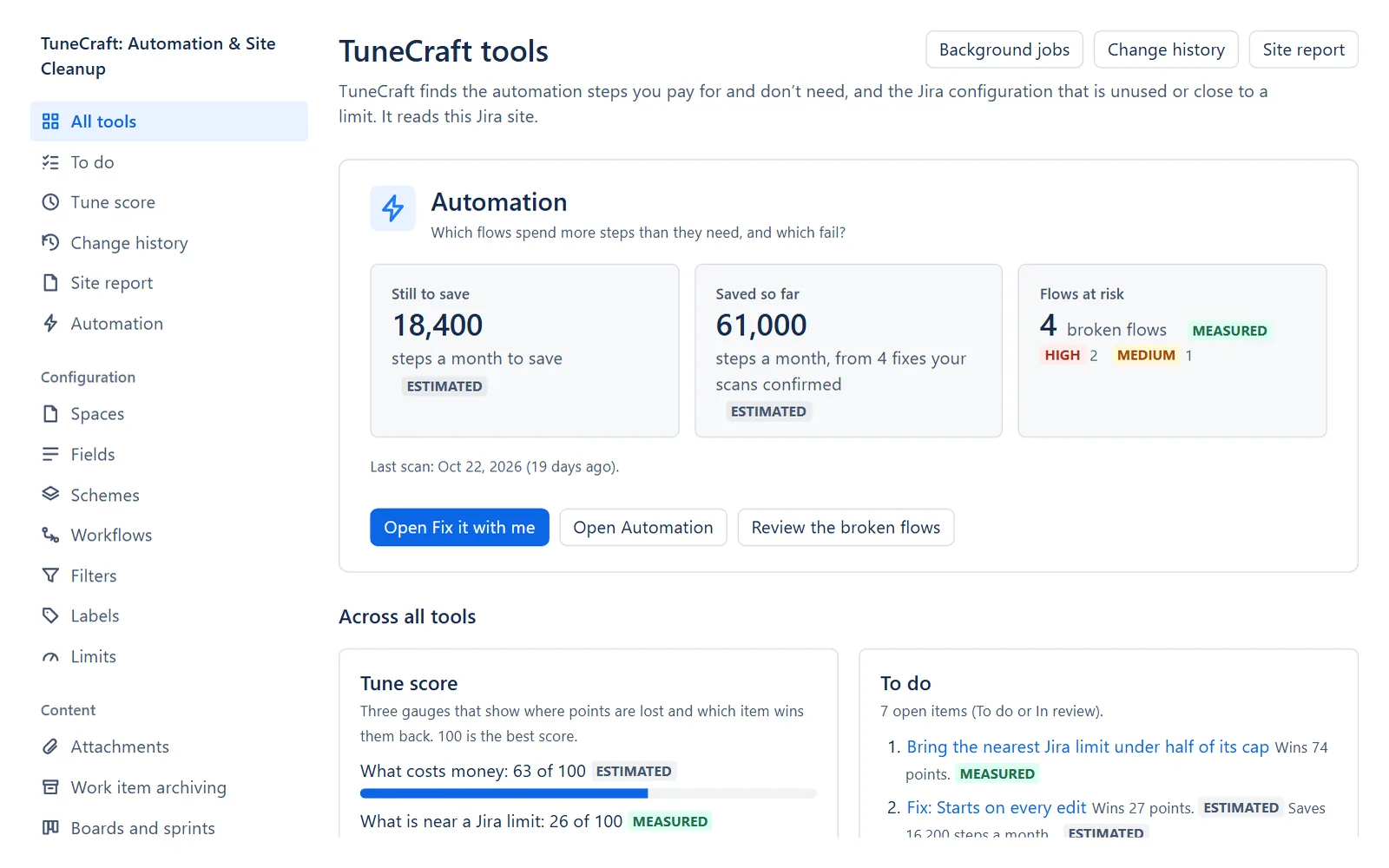
The main page, All tools, shows what TuneCraft knows about your site on one screen: Automation first, the Tune score and the To do list, then one card for every other tool. It shows what TuneCraft already holds and reads nothing new from Jira, apart from one count (see Jira points and who sees what).
On this page
Where to find it
| Where | What is there |
|---|---|
| Apps > TuneCraft | The main page, All tools. It is for Jira admins; a person who may use Automation only sees the Automation card. |
| Apps > TuneCraft > Change history | The page that the Change history button in the head opens. See Change history and Compare scans. |
| Jira settings > Apps > TuneCraft settings > Background jobs | The page that the Background jobs button opens. See Background jobs. |
What is on it
| Part | What it shows |
|---|---|
| The head | One sentence on what TuneCraft is for and which Jira site it reads. Jira admins also see the buttons Background jobs, Change history and Site report. |
| The Automation card | Three tiles and one main button (below). |
| Across all tools | The three gauges of the Tune score, each out of 100 or "Not read", beside the To do list: how many items are open, the next three, biggest first, and the counts by status. |
| One card for each other tool | In groups: Limits; Fields and labels; Spaces, boards and archiving; Filters and dashboards; Schemes and workflows; People and seats; Attachments. A card has the tool's name, its state in words, one line on what it finds, one number marked measured or estimated, when it was last read, and Open followed by the tool's name. |
| Below the cards | The legend for measured and estimated, Watched (see Watch before removing), the history of findings with targets, and Site health. |
The Automation card
| Tile | What it says | Measured or estimated |
|---|---|---|
| Still to save | The steps a month the fixes would still save. Findings you ignored are left out. | Estimated |
| Saved so far | The steps a month your scans confirmed, and how many fixes made them. Until one is confirmed it says "No fix confirmed yet. A later scan confirms each fix." | Estimated |
| Flows at risk | The broken flows, with how many are high and medium. It says so when the check has covered only part of the scan, has not read it yet, or is still reading it. | Measured |
A tile whose number could not be read says "Could not be read just now" and never shows a zero it does not have. Under the tiles are the date of the last scan and one main button: Open Fix it with me for a Jira admin, See what can still be saved for anyone else, or Scan your flows when there is no scan. Only people with the Manage level can scan: the others read "Only people with Manage access can scan. Ask a Jira admin."
Card states and late readings
The state on a card is one of these:
| State | What it means |
|---|---|
| N to look at | The tool found N things to review. |
| Close to a limit | A count is at 80% of its cap or more. |
| Over half of a limit | A count is above half of its cap. |
| Nothing found | The tool read your site and found nothing. |
| Not read yet | Nothing has been read for this tool. A Jira admin can select Turn on on the card. |
| N still running | A reading is under way. |
| Count turned off | A Jira admin turned this count off. |
Labels, Attachments, Work item archiving, Boards and Deactivated people read Jira when you open them, so their cards have no state: they say what they read. A label change or an Attachments reading that is still running adds a Carry on button that goes to the page that continues it.
A card marks a reading Late when it is older than two runs of the check that makes it, on the schedule set on Background jobs: a daily check is late after 2 days, a weekly one after 2 weeks, a monthly one after 2 months. A scan is yours, so it is called old after a month: "Older than a month. Scan again for current numbers." A tool whose background checks are off, or paused because no Jira admin opened it for 60 days, has no schedule, so nothing of it is called late.
Tip: On a tool's page, a late reading is marked as late. A Jira admin sees Read again now beside it when the tool's check is late and not already running or asked for, and can select it to start a new reading. A reading that runs in the background says to open the page again later.
Site health
Site health, at the bottom of the page, is an estimate of how much attention your site needs, from 0 (most) to 100 (nothing found). It is worked out from what the tools last read. An object with a high finding counts 3, a medium one 2 and a low one 1. A tool's score is 100 minus that total as a share of 3 for every object the tool looked at. Limits scores the share of its cap that its fullest count has used: nothing is taken off up to half of it, and the score is 0 at the cap. The site's score is the mean of the tools' scores. It shows where to look, not a verdict.
The section shows the change since the previous reading, the findings that improved most and the ones that got worse, what was added and removed, and the site's own counts, which are not scored. What lowers it opens the tool's findings. It is separate from the Tune score, which has three gauges and no overall number.
The first time
When nothing has been read yet, Three steps to start replaces the cards.
Step 1: Scan your flows
Export your flows from Jira and open the file here, or use Try with example flows.
Step 2: Let the other tools read your site
A Jira admin selects Turn on Limits and Fields. A message says the background checks are on, and the step shows Done. Anyone else reads "Ask a Jira admin to turn on background checks." The link "How background checks use Jira points" opens the help of Limits.
Step 3: Fix what you find
Select Open the welcome guide. Fix it with me goes through your flows one at a time, and the To do list gathers the actions from every tool.
Jira points and who sees what
Important: Opening the page costs no Jira points, with one exception. When TuneCraft has no count of the fields that may go from the last 24 hours, it reads that count from Jira, as you: at most 3 requests and 180 points (a limit). A complete count is kept for 24 hours.
Everything else on the page is what TuneCraft already holds from its readings and your scans. A person who may use Automation only (a member of a group a Jira admin allowed) sees the Automation card without the Fix it with me button. The Tune score, the To do list, the other tools, Background jobs and Change history are for Jira admins.
Related pages
- To do: every action the tools propose, on one list.
- Tune score: the three gauges and how each is worked out.
- Background jobs: the checks that fill the cards, and how often they run.
- Getting started: turning on background checks and the Welcome guides.
Questions about the app? Write to info@plugincraft.ca.