Background jobs
Background jobs lists every check TuneCraft runs on its own, in one place: what it reads, when it last ran and runs next, and the Jira points it spends. It is for Jira admins, who also choose here how often each check runs. Nothing on it changes Jira.
On this page
Where to find it
| Where | What is there |
|---|---|
| Jira settings > Apps > TuneCraft settings > Background jobs | The page, in the group Running the app. |
| The main page, and each tool's settings | A link to the page. |
How the checks work
- A tool's background checks are off until a Jira admin turns them on. Until then TuneCraft reads nothing from Jira for that tool.
- An hourly trigger starts the checks that are due. They read Jira in small parts, within the site's points budgets, and carry on where they stopped. A reading never starts again from the beginning.
- A check that fails is tried again from where it stopped, after an hour, then after twice as long each time, a day at most.
- They wait after 60 days without a Jira admin opening the tool, and stop without an active licence. Opening the tool starts them again.
- A check that reads work items runs only while a Jira admin has the tool open, as that person, because TuneCraft does not read work items on its own.
- Points are measured by TuneCraft's own meter, which may differ from Jira's own count.
Turn a tool's checks on or off
Use any of these:
- Turn on on the tool's card on the main page.
- Turn on background checks in the tool's settings page (or Turn off background checks), or on a tool's own page that says "TuneCraft has not read your … yet".
- Turn on or Turn off in the Tool's checks column of the Background jobs table. It applies to all of that tool's checks.
The first reading starts within the hour. On a large site it takes hours or days. Check again now asks for one check and puts it first in the queue. It needs the tool's checks to be on, the check not to be set to off, and an active licence, and the page says why when it cannot. On a tool's own page, a late reading is marked as late. A Jira admin sees Read again now beside it when the tool's check is late and not already running or asked for; it asks for that tool's late checks the same way.
Read the page
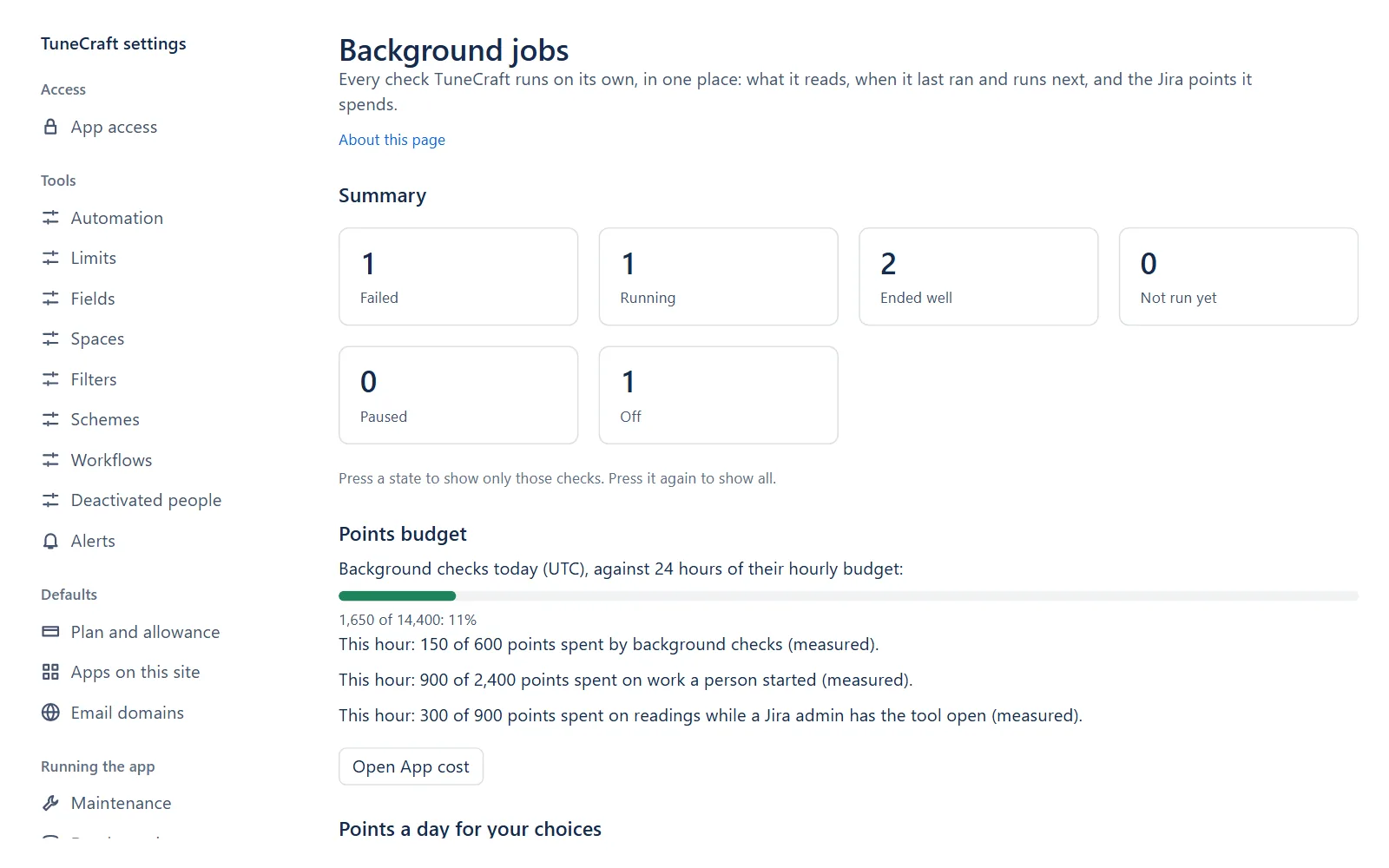
- Summary counts the checks by state: Ended well, Failed, Running, Not run yet, Paused and Off. Press a state to show only those checks, and press it again to show all.
- Points budget shows this hour's points against three hourly limits (measured): 600 for background checks, 900 for readings while a Jira admin has a tool open, and 2,400 for work a person started. It shows today's background points against 24 hours of 600, which is 14,400. Open App cost shows what TuneCraft spent, by day. See Limits and troubleshooting.
- Checks has one row for each check: Check, What it reads, State, Last run, Next run, Points today, Points, 7 days and Tool's checks. Filter it by Tool. A check that failed says why, for example "Jira answered 403." A check that was due more than 6 hours ago and has not finished is marked Behind.
- Automatic scan shows the last push and the pushes saved today, out of 6 a day. Its schedule is kept by your sender: see Automatic scan.
- 7-day history counts, for each day, the passes finished, the failed tries and the points, for all checks or one.
Choose how often a check runs
Each row has a How often menu: Daily, Weekly, Monthly or Off. Each choice says "about N points a day", measured once the check has finished a pass and estimated before. The first choice is the check's default.
Step 1: Find the check
Open Background jobs and find the check.
Step 2: Choose how often
Open its How often menu and choose.
Step 3: Read the new next run
The page says "Saved", and shows the new next run.
Points a day for your choices adds up what your choices need against the background budget, which carries 14,400 points a day. Checks of tools that are off, and checks that run while a Jira admin has the tool open, are not counted. If your choices do not fit, the page says so and suggests a slower setting for the checks that would save the most. A slower setting on a check, or on another, helps one that is Behind.
Note: A delete for good in Fields needs a Filters reading from the last 7 days, so a monthly or off choice for Filters keeps it refused most of the time.
The checks and their defaults
| Tool | Check | What it reads | Default |
|---|---|---|---|
| Automation | Broken flows | What the last scan's flows name (fields, priorities, resolutions, link types, spaces, filters, people), to find what is gone. | Daily |
| Limits | Daily counts | The counts Jira limits, for the site and each space that changed, was never counted or is at half a cap or more. | Daily |
| Limits | Weekly counts | The site's locked fields, the count of every space, and every permission scheme's grants. | Weekly |
| Fields | Daily fields reading | Jira's custom fields and statuses, and how many work items have a value in each field that may be unused. | Daily |
| Fields | Weekly field contexts reading | Each custom field's contexts, and whether each context of a list field holds an option. | Weekly |
| Spaces | Weekly reading | Every space Jira lists, live, archived or in the trash, with its last update, work items, components and versions. | Weekly |
| Filters | Weekly filters reading | Every filter with its owner, last use, favourites, subscriptions and shares, and whether Jira accepts its JQL. | Weekly |
| Filters | Weekly dashboards reading | The dashboards shared with TuneCraft's app user, active, archived and deleted. | Weekly |
| Schemes | Weekly reading | Work types, priorities, resolutions and link types, permission schemes and their grants, and the groups in each space's roles. | Weekly |
| Schemes | Weekly reading of unused schemes | Screens, field configurations and the schemes of screens, work types, notifications and security, and what uses each. | Weekly |
| Schemes | Weekly reading of notification schemes | Each notification scheme's events and recipients, and whether each group it names has an active member. | Weekly, while a Jira admin has the tool open |
| Schemes | Monthly reading of screens | Each screen's tabs and fields. | Monthly |
| Workflows | Weekly reading | Every workflow with its statuses and the rules apps add, the workflow schemes, the spaces that use them, and Jira's count of work items in each status. | Weekly |
| Attachments | Weekly whole-site attachments reading | Every space's work items with attachments: counts and sizes of files, never their names. | Weekly, while a Jira admin has the tool open |
| Fields | Daily check of watched fields | The fields you watch: whether a work item with a value in the field was updated since you added them, and Jira's last-use date. See Watch before removing. | Daily |
| Spaces | Daily check of watched spaces | The spaces you watch: whether work items changed in them since you added them. | Daily |
| Filters | Daily check of watched filters | The filters you watch: when each was last used. | Daily |
Only ids, counts, days and yes or no are kept from these readings, never names. Labels, Work item archiving and Boards and sprints have no background check: they read Jira when you open them or when you ask. Deactivated people adds up what the other tools read. It asks Jira whether the people a permission scheme names are still active, and, for the rows shown, for their names and, when you open an account, for its groups. Only whether each person is active is kept.
Related pages
- Limits and troubleshooting: the points budgets in full.
- Automatic scan: the schedule your sender keeps.
- Attachments: the whole-site reading that runs while the tool is open.
Questions about the app? Write to info@plugincraft.ca.