Seats
Seats lists the licensed seats nobody has used for 30, 60 or 90 days, the seats never used, and the product admins who have not been active. It is a page of the Deactivated people tool, for Jira admins, and it counts seats, not money, and never changes a seat or an account.
On this page
Where to find it
| Where | What is there |
|---|---|
| Apps > TuneCraft > Deactivated people > Seats | The upload, the totals and the table of people |
| Atlassian Administration > Directory > Users | Export users, where the file comes from |
Why you upload a file
Jira does not give an app the date a person last used a product. Atlassian's user export has it, so you download that file yourself and open it on the page. The file is read in your browser. Only account ids, the day each person was last active and whether they are a product admin are sent to your TuneCraft app, which runs on Atlassian's cloud. Plugincraft receives none of them. Names and email addresses stay in your browser. TuneCraft never asks for your organization key or an API token, and nothing leaves Atlassian.
Load the file
Step 1: Open the users in Atlassian Administration
Select your organization. Only an organization admin can export users. Select Directory, then Users. With the original user management, open your site from Apps, then select Users.
Step 2: Export the users with App access
Select Export users, choose all users and all statuses (or active only), and under additional data select App access. Then select Export users to send the request. Without App access the file has no Role columns and TuneCraft cannot tell licensed seats from other accounts.
Step 3: Download the file
Atlassian emails you a download link. Download the CSV file.
Step 4: Choose the file on Seats
On Seats, under User export (CSV), select Choose file or drop the file there. Do not edit it. If the file has a last-seen column for more than one product and site, pick one under Product and site.
Step 5: Check the date of the export
Under Date of the export, check the date. Atlassian puts no date in the file, so unused days are counted from this day. It starts as the day the file was saved, and it cannot be in the future or before the latest last-active date in the file.
Step 6: Use the file
Select Use this file. The page says how many licensed seats it found and how many were never used. It leaves out people who are not active or hold no licensed seat, and says how many.
Note: If the file has no User ID column, no "Last seen in" column or no Role column for the product, the page says what to export again.
Read the page
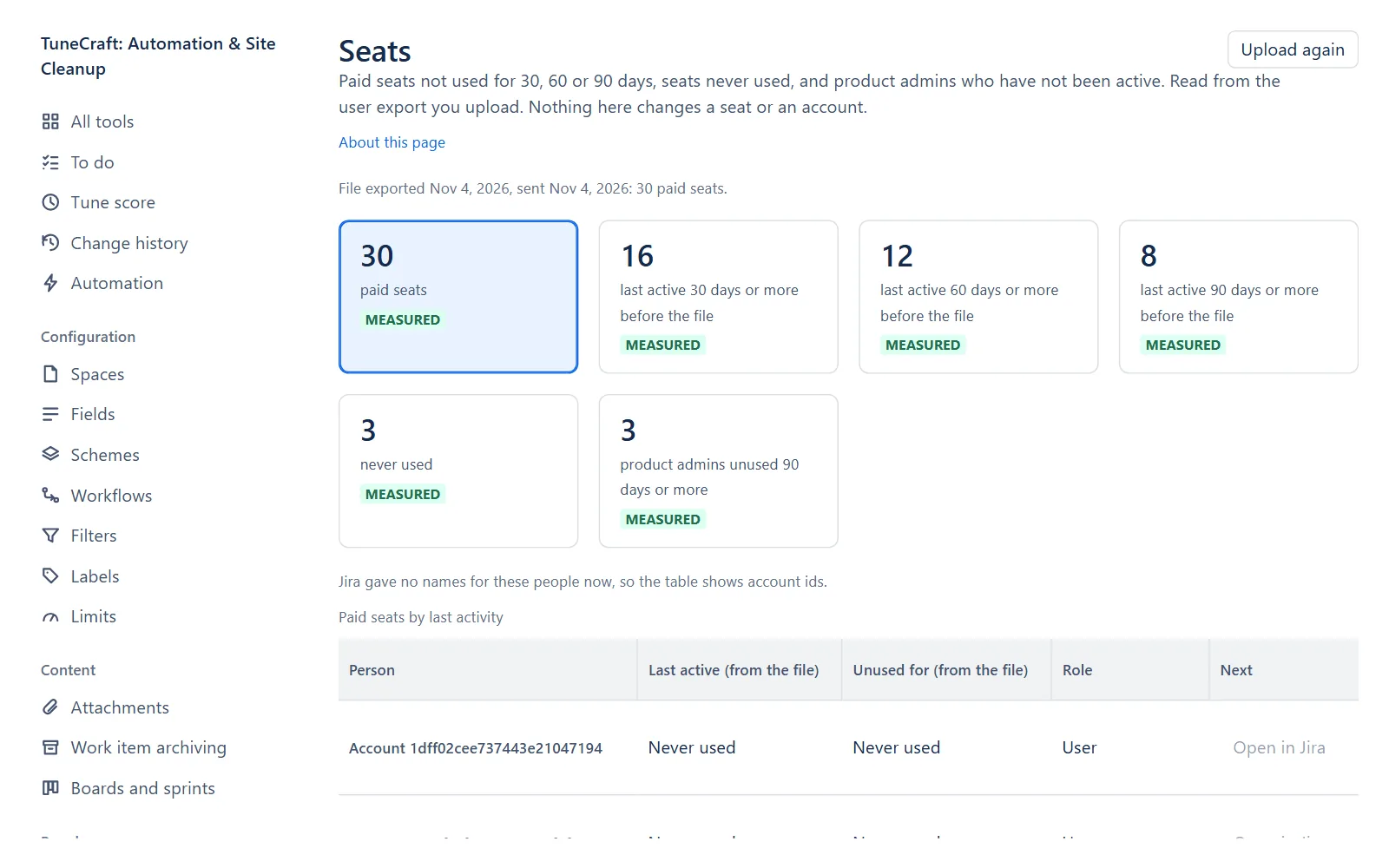
- The tiles count licensed seats; seats last active 30, 60 and 90 days or more before the file; seats never used; and product admins unused 90 days or more. Each is measured. A tile also filters the table.
- The table lists Person, Last active (from the file), Unused for (from the file), Role and Next. Names come from Jira when it gives them; otherwise the table shows account ids. Open in Jira opens the person.
- Download CSV writes the seats of the list you are looking at, the first 2,000 at most.
A seat counts as unused for 30 days when the person was last active 30 or more days before the export date you gave. Use of the product after the export is not seen. A person with an empty last-seen cell, or a word such as "Never", counts as never used. A file with no Role column for the product is not used: the page says to export the users again with App access selected.
What it keeps
TuneCraft keeps the account ids and days until you upload again or remove the file, and removes them 90 days after the upload. To remove them sooner, select Remove the file and confirm. The page reads up to 30,000 seats from one file, and refuses a file with a date it cannot read in more than 1 row in 20, saying which date.
Related pages
- Deactivated people and groups: the other pages of this tool.
- Privacy and data: where your data goes and what is kept.
Questions about the app? Write to info@plugincraft.ca.