Change history and Compare scans
Change history says what changed in your Jira configuration, day by day, and Compare scans says what changed between two scans of your flows. Neither changes anything in Jira.
On this page
Where to find it
| Where | What is there |
|---|---|
| Apps > TuneCraft > Change history | Changes to your configuration, day by day. It is near the top of the rail, after All tools, To do and Tune score, and a button in the head of the main page. For Jira admins, with a licence or a trial. |
| Apps > TuneCraft > Automation > Compare scans | Two scans of your flows, compared. People with the View level can open it. |
What the history records
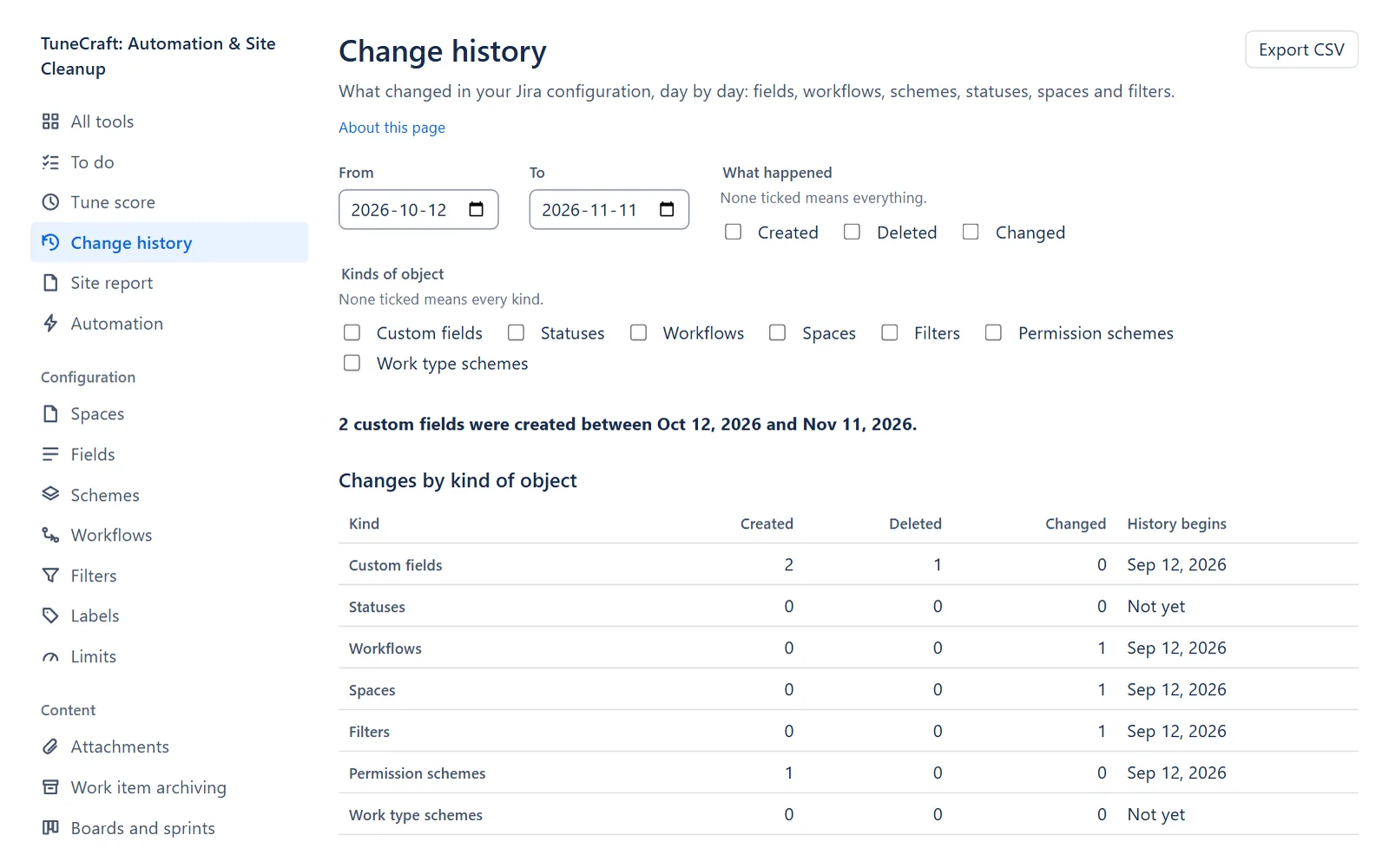
Each time a background reading of TuneCraft sees a change, it keeps one row: the object's id, its kind, what changed and the day. It keeps no names and no copy of the configuration, and it reads nothing more from Jira for this. Rows are kept 400 days.
The kinds are custom fields, statuses, workflows, spaces, filters, permission schemes and work type schemes. They come from the readings of the tools that own them (Fields, Workflows, Spaces, Filters and Schemes), so a tool whose background checks are off or paused adds no history. The table says Checks are off or Checks are paused for that kind.
Look at a period
Step 1: Choose the days
Choose From and To. The page opens on the last 30 days. A period can be up to 400 days.
Step 2: Choose the kinds and what happened
Under Kinds of object, tick the kinds you want. Under What happened, tick Created, Deleted or Changed. None ticked means every kind, or everything.
Step 3: Read the summary
Read the sentence above the table, such as "2 custom fields were created between Oct 6, 2026 and Nov 5, 2026.", then Changes by kind of object. Its History begins column gives the day each kind's history starts, or Not yet before its first reading has finished.
Step 4: Read the changes
Under Changes, rows come newest first. Names are read from Jira as you when the rows are shown and are not kept. An object Jira no longer names shows its id.
Step 5: Export the rows
Select Export CSV to download the rows. The file holds up to 5,000 rows, and names are filled in for the first 500 objects only. The message after the export says if it was cut.
What the history cannot say
- History begins the day this was deployed and, for each kind, the day its first reading finished. A change made before then is not listed.
- A reading sees Jira as it is when it runs. Two changes between two readings show as one, an object created and deleted between two readings is never seen, and the day shown is the day of the reading.
- A filter or space that was deleted can appear up to 2 weeks after the day it happened, because it is noted only after two readings miss it.
Find out who did it
Jira's audit log says who made a change and when. It is read only when you press a button, as you, and TuneCraft keeps nothing from the answer. Only Jira admins can read it.
Step 1: Ask for the audit log
On a row, select Who did it. Or, above the table, select Read the audit log for these days, with words to look for if you like.
Step 2: Read the records
Read the table of Jira's audit records, newest first. Show more records shows more.
Note: How long Jira keeps audit records depends on your plan and on the retention set in Jira's audit log settings: an older record cannot be listed here. If Jira refuses, the page says that the app needs the audit log permission that comes with this version of TuneCraft.
Compare scans
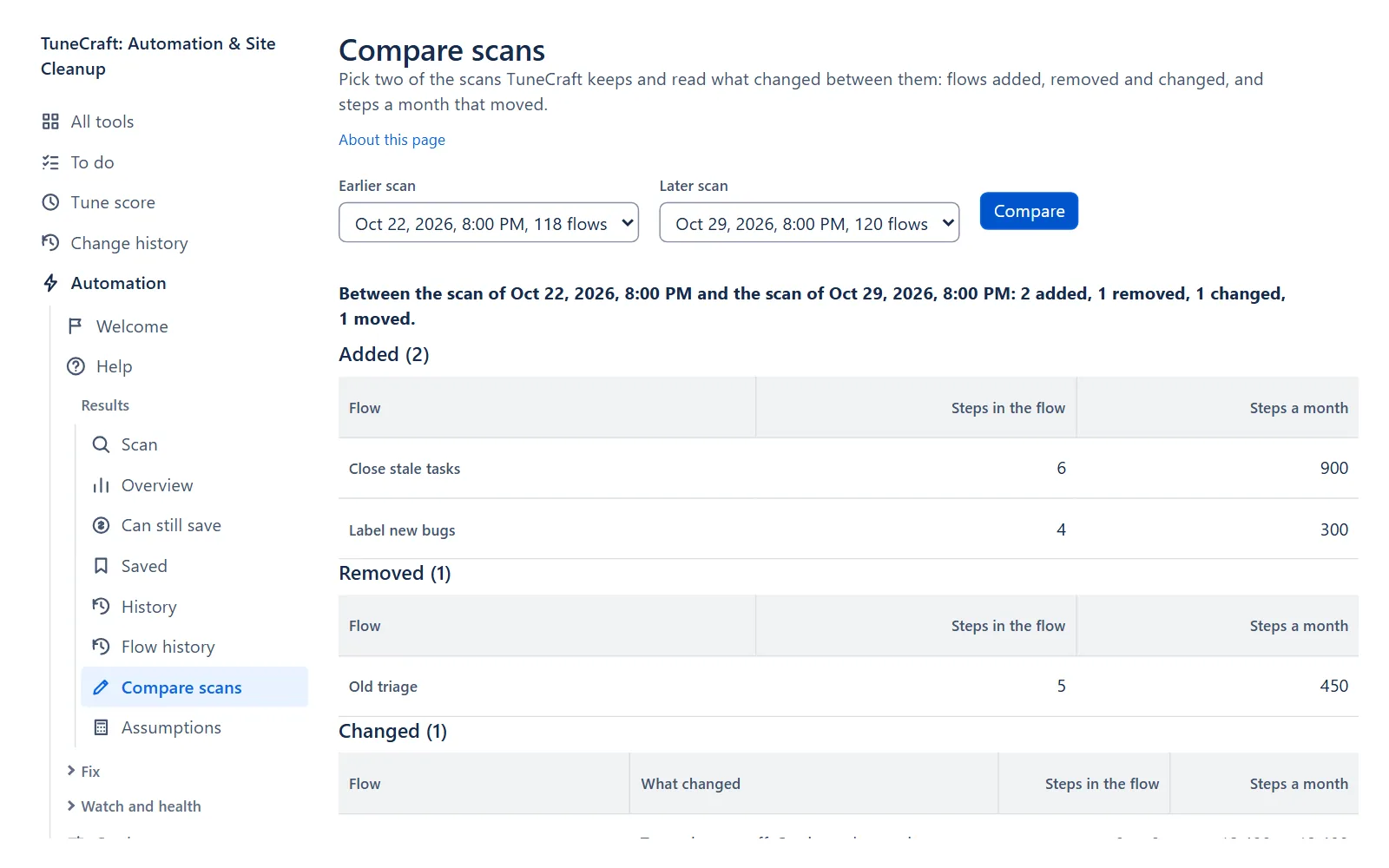
Pick two of the scans TuneCraft keeps, the 24 newest.
Step 1: Pick two scans
Choose an Earlier scan and a Later scan.
Step 2: Select Compare
Select Compare. The page says how many flows were added, removed, changed and moved between the two scans, then lists them:
- Added and Removed: flows that are in one scan and not the other.
- Changed: a flow that was Renamed, Turned on or off, had its Trigger changed, had its Scope changed or had its Settings changed.
- Steps moved: flows whose steps a month went up or down, the biggest first.
Flows are matched by their id. The page shows that a flow changed, not who changed it or which step: for who, use Jira's audit log. Each list shows the first 200 flows. Steps a month are measured when a person entered a number and otherwise estimated, and they are compared only when the same version of the checks read both scans. If TuneCraft keeps fewer than two scans, there is nothing to compare yet.
Related pages
- Automation: scanning your flows, which gives Compare scans its scans.
- The main page: the Change history button and the card of each tool.
- Background jobs: the checks that feed the history.
Questions about the app? Write to info@plugincraft.ca.