Work item archiving and Stale backlog
Work item archiving archives work items through Jira's own archive, after a Jira filter or JQL you write. Stale backlog archives, or moves to a status, work items nobody has touched for months. Both are for Jira admins and show the flows that act on those spaces before anything is written.
On this page
Where to find it
| Where | What is there |
|---|---|
| Apps > TuneCraft > Work item archiving | The tool. Its rail has Work item archiving, Stale backlog and Changes. |
| Work item archiving | Archive what a filter or JQL finds. |
| Stale backlog | Close a backlog nobody has touched. |
| Changes | Each run, and Undo for an archive. |
Before you start
- Archiving work items is part of Jira Premium and Enterprise, and only Jira admins and site admins can use it. Jira gives an app no edition, so TuneCraft refuses up front only when Jira says the plan has no archiving. Otherwise Jira's answer to the first request decides: if it refuses, nothing is archived and the page says so.
- Only work items of software, service and business spaces can be archived.
- Atlassian marks Jira's archive and unarchive requests as experimental. If Jira changes them, a run can fail, and TuneCraft says what it knows.
- Names, keys and summaries are read from Jira as you and are not kept.
Archive by a filter or JQL
Step 1: Choose how to find them
Open Work item archiving. Under Find them with, choose A Jira filter and pick one, or choose JQL I write. TuneCraft uses the JQL for this search only and does not keep it. It leaves out sub-tasks, which are archived with their parent.
Step 2: See what Jira finds
Select See what Jira finds. The page shows the count Jira gives, a sample, and the work items by space. One run takes the first 2,000 of them: run it again for the rest.
Step 3: Read the flows
Read Flows that act on these spaces. A flow that searches by JQL no longer finds a work item once it is archived, because Jira does not search archived work items. If flows act on these spaces, tick I checked these flows, or I accept it to go on.
Step 4: Download the record file
Select Download the record file. The run cannot start before you do.
Step 5: Archive
Select Archive N work items…, then Archive them in the confirmation.
TuneCraft records the run before it writes anything, then archives 100 at a time, as you, with this page open. If you close it, open the page again and select Carry on: the run stays recorded, and only the person who started it can carry it on. Stop ends it where it is. A write is never repeated after an unclear answer from Jira: the page says "may have been archived" and asks you to check in Jira against the record file.
Close a stale backlog
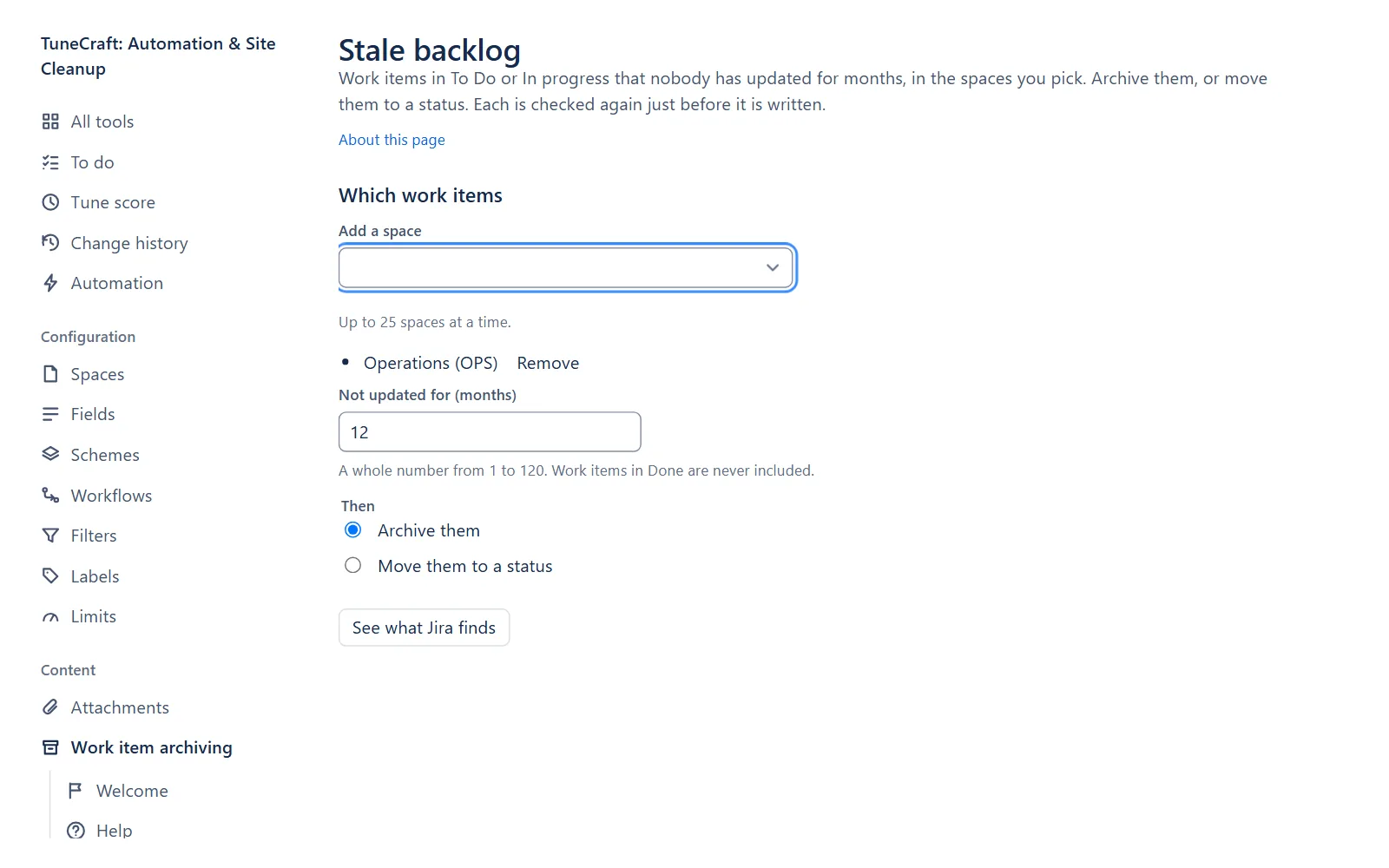
A work item is stale when it is in To Do or In progress, in the spaces you pick, with no update for the number of months you choose, counted back from today by calendar. Work items in Done are never included.
Step 1: Pick the spaces
Open Stale backlog. Under Add a space, pick up to 25 spaces.
Step 2: Set the months
Under Not updated for (months), type a whole number from 1 to 120.
Step 3: Choose what happens
Under Then, choose Archive them or Move them to a status. For a move, pick the Status.
Step 4: Look and confirm
Select See what Jira finds, read the flows that act on these spaces, tick the box, download the record file and confirm, as in Steps 2 to 5 above.
Just before each work item is written, TuneCraft asks Jira again and leaves any that no longer match, or whose sub-task was updated since the day.
A move to a status is done one work item at a time, because Jira has no way to check and move many in one request. A work item whose workflow has no transition to that status is left as it is. So is one with more than one transition to it, because they can set different things, such as a resolution, and TuneCraft does not guess. Each move can send the notifications your Jira notification scheme sets, and can start a flow that a transition triggers, which uses automation runs.
Important: Jira cannot undo a move, and TuneCraft cannot either. The record file lists the work items.
What it costs
Each step is read or written as you, from the points for work a person starts. Before you confirm, the page says "About N Jira points (estimated), as you." A run waits when this hour's points are spent, and carries on after the time shown. See Limits and troubleshooting.
| Run | Points for each work item (estimated) |
|---|---|
| Archive what a filter or JQL finds | 0.01 |
| Archive a stale backlog | 1 |
| Move a stale backlog to a status | 8 |
What it changes in Jira and how to undo it
| Change | Where it is confirmed | Undo |
|---|---|---|
| Archives the work items a filter, JQL or stale backlog finds | Archive N work items…, then Archive them | Undo in Changes, for 30 days, or Jira's archived work items page |
| Moves stale work items to a status | Move N work items…, then Move them | No undo. |
Undo in Changes unarchives the work items through Jira as you, 100 at a time, while the page stays open. Jira can unarchive a parent with its sub-tasks, not a sub-task alone, and cannot unarchive work items in an archived space.
What it keeps
| Kept | For how long |
|---|---|
| The work item ids, whether each was archived, moved, refused or left, and your account id | While a run is open, and 30 days after it ends |
| The record of the change, with its counts and your account id | 400 days |
| For a stale backlog, the space ids, the day and the status id | Until the run ends |
Never JQL, summaries or names. The record file you download holds the keys and what you searched for.
Related pages
- Automation: scan your flows first, so the page can name those that act on the spaces.
- Spaces: archive or remove a whole space.
- Limits and troubleshooting: the points budgets a run waits for.
Questions about the app? Write to info@plugincraft.ca.