Fix it with me
Fix it with me takes a Jira admin through the fixes one flow at a time: first the one file of changes TuneCraft makes itself, then each flow it cannot fix itself, the biggest saving first. TuneCraft changes nothing in Jira: you import the file and make the changes.
On this page
Where to find it
| Where | What is there |
|---|---|
| Apps > TuneCraft > Automation > Fix it with me | The guide, in the rail under Fix. |
| Apps > TuneCraft (the main page) | The button Open Fix it with me. |
| Optimize all, Can still save and the Map | A Fix it with me button. |
It needs a scan: see Automation.
Where we start
Step 1: Choose your export
On the first screen, Where we start, choose the files you gave the scan. TuneCraft needs them to tell which flows it can fix in one file. Without them, every flow is listed to fix by hand.
Step 2: Download the file
If TuneCraft can fix some flows itself, select Download the file. Jira imports 5 MB at most per file, so a larger set is split into numbered files. How to import the file opens the steps below.
Step 3: Start with the first flow
Select Start with the first flow, or Look at the optional flows if every flow is optional. If your file lacks some of the scan's flows with findings, TuneCraft says how many and lists them to fix by hand.
Import the file into Jira
Jira imports each flow of the file as a new copy, turned off, and leaves the old flow as it is. Only Jira admins can import flows.
Step 1: Start the import
In Jira, select Settings (the gear), System, then Global automation. The button Open Jira's automation opens it in a new tab. At the top right, select More actions (…), then Import flows.
Step 2: Select the flows
Select Upload JSON, choose the downloaded file (numbered files one at a time) and go on to Select flows. Tick the flows and keep the project scope under Restrict to spaces. Tick Import flow owners, so that Jira gives each copy the owner named in the file. Unticked, you become the owner of every imported flow. Select Next.
Step 3: Process the import
Jira shows Process and imports each flow as a new flow named "Copy of" followed by the old name, turned off. Select Done when it has finished.
Step 4: Check each copy
Open each copy and check its owner and actor in its settings.
Important: Jira sets each copy's actor to Automation for Jira, whatever the file says. For a flow that ran as a person, choose that actor again in the copy before you switch to it.
Step 5: Switch to the copies
Turn the old flow off and its copy on: open each flow, use the Enabled toggle and select Save. The order to switch to each flow, on the start screen, gives the right order. See Optimize and fix.
Step 6: Delete the old flow
Keep the old flow turned off for a week, then open it, select More Actions (…) and Delete. Rename the copy to drop "Copy of" from its name.
Step 7: Scan again
Scan again with a new export, then select Check against the latest scan on Optimize all. Saved then counts the fix.
Go through the flows
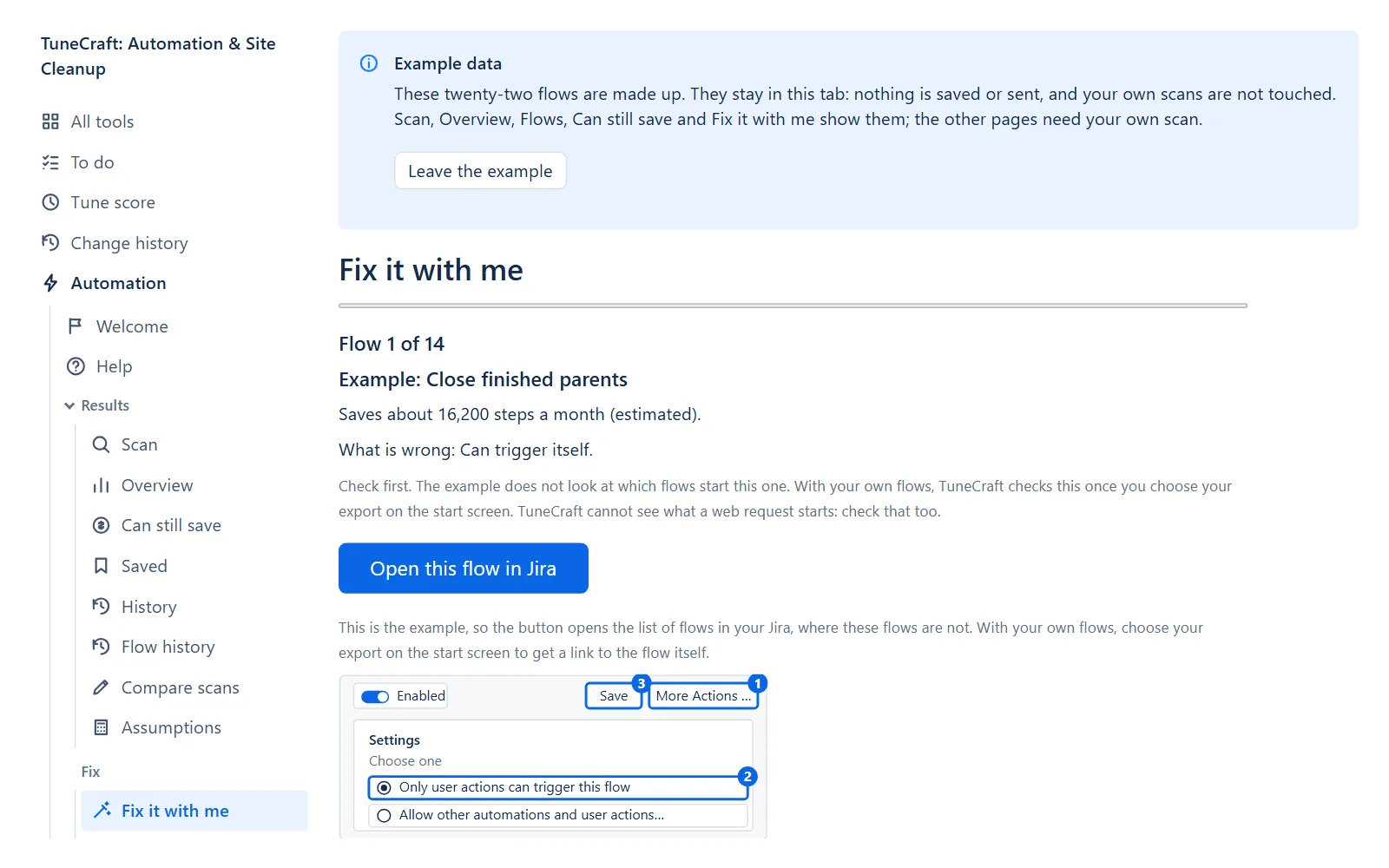
Each flow has its own screen, headed Flow N of M. It shows:
- how many steps a month the fix saves (estimated);
- What is wrong, in one sentence;
- the button Open this flow in Jira;
- a drawing of the Jira screen with the places to click numbered, and the steps;
- a check to make first, so you do not break a flow that needs the behaviour you are about to turn off. TuneCraft cannot see what a web request starts: check that too.
Make the change in Jira, then choose I did it, Skip to leave the flow for now, or Ignore so that the finding is not proposed again. See the flow opens it in Flow view, and Back returns to the previous flow. Your place is kept in this browser.
Note: I did it is what you say, so it is never counted as measured. Only a new scan confirms a fix and counts it.
Optional and turned-off flows
A flow that no other flow can start is optional: fixing it saves little. Optional flows come last.
A flow that is turned off costs no steps. When you include turned-off flows (on Scan, see Automation), Fix it with me takes you through them as if they were turned on, and what they would save is not counted in what you can save now. A turned-off flow with nothing to change by hand has no step: Optimize all lists what it would find.
At the end
The last screen says how many flows you marked as done, with the steps a month they would save (estimated), and how many you skipped. Go through them again starts over. Scan again takes you to Scan, to confirm the fixes.
Related pages
- Optimize and fix: the corrected file, one flow or all.
- Automation: scanning, the findings and the savings.
- Getting started: the example flows.
Questions about the app? Write to info@plugincraft.ca.