Teams and workload
Set up teams and the hours people have, then see each person's work against those hours under the timeline. You can give work to someone else, set hours by hand, plan for people not hired yet and level the load.
On this page
Teams and capacity
Select Teams and capacity in the list on the left of the app's page. On a project's Hierarchies tab, it is under More. The page has four tabs: Teams, People, Positions and Holiday calendars. Everyone who can use the app can open it.
Teams
A team gives its people weekly hours and the managers who look after their capacity and time off. Each hierarchy's workload uses them. A team has:
- a Name;
- the source of its people, under People come from: A list of people, A Jira group or An Atlassian team, with at most 200 people;
- its Weekly hours: tick The team has its own weekly hours and set the hours for each weekday, or leave it clear so that its people follow the site calendar's working days and hours;
- its Managers, up to 20;
- the Holiday calendar it follows, if not the site calendar's. See Holiday calendars.
Jira admins and app admins create teams and choose their people and managers. A team's managers can change its name, weekly hours and holiday calendar. They can also change the position, weekly hours and time off of the team's people.
For a team from a Jira group, the app reads the group's members when you save. It reads them again once the group changes or the copy is more than an hour old, the next time someone opens Teams and capacity or a workload that shows the team. The app learns of group changes from Jira's audit log, so nobody has to refresh the team by hand.
For a team from an Atlassian team, pick the team under Search your teams, or paste the link to the team's page. The app reads the team's people as you can see them, when you save. After that, it reads them again when an app admin opens the Teams and capacity page and the copy is more than an hour old.
A site can have up to 200 teams. Deleting a team removes its weekly hours and managers. Its people keep their own weekly hours and time off.
People
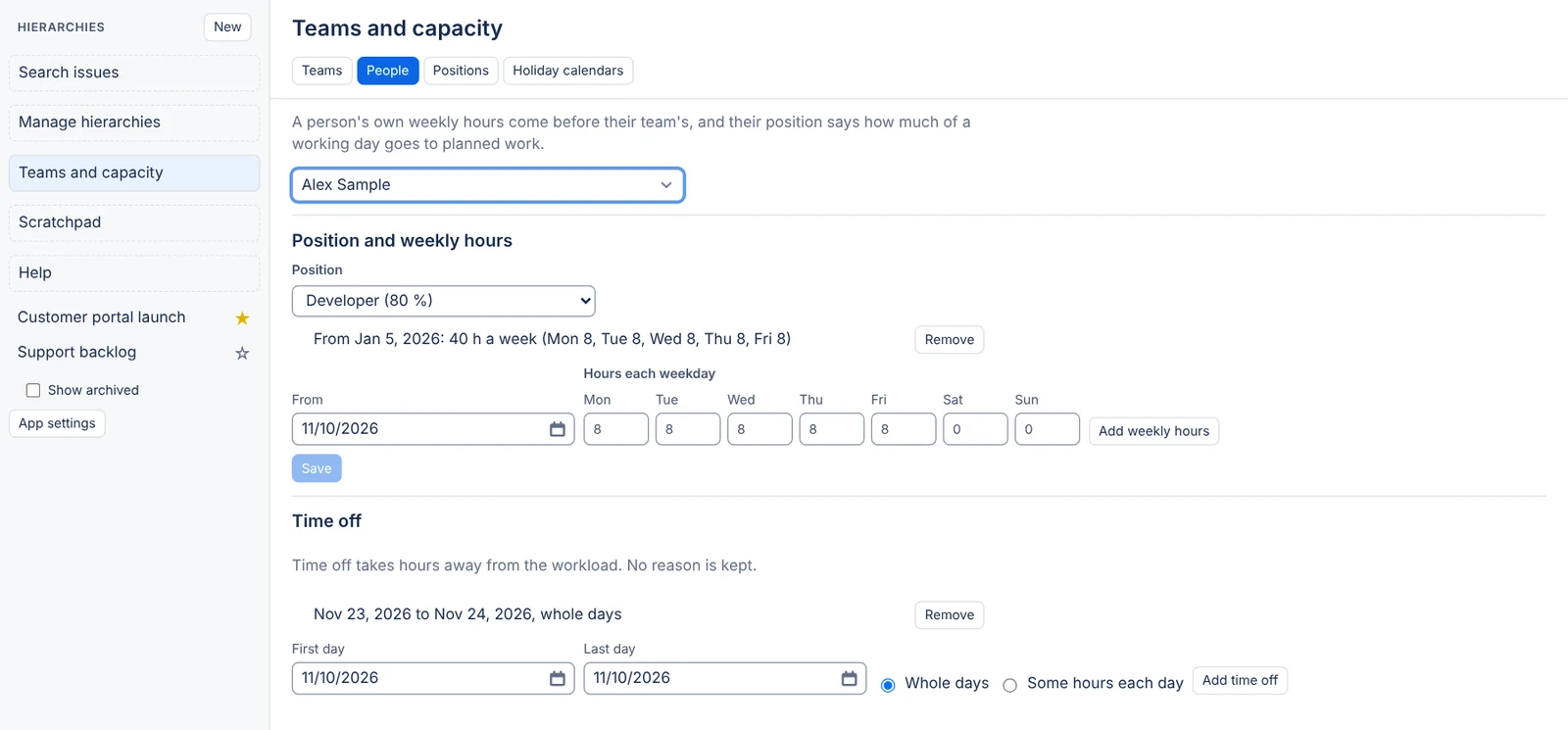
Pick a person to see their capacity:
- Position: the kind of job they do, which sets how much of a working day goes to planned work. With No position, all of their working day counts.
- Their own weekly hours: hours for each weekday, from a given day. Select Add weekly hours, then choose From and the Hours each weekday. A person's own weekly hours come before their team's.
- Time off: select Add time off, choose the First day and Last day, then Whole days or Some hours each day with the Hours away each day. No reason is kept.
The person, the managers of a team they are in, Jira admins and app admins can see this. Anyone else is told they can't. Managers and admins change the position and weekly hours. The person can also change their own time off.
Positions
A position is a kind of job, with the share of a working day it gives to planned work. For example, with DevOps at 50%, half of a DevOps person's working day counts for planned work. These shares are the site's defaults, and each hierarchy can set its own share for a position in its workload settings. Only Jira admins and app admins can change positions. A site can have up to 50.
Holiday calendars
A team can follow a holiday calendar of its own in place of the site calendar's holidays, for people in another country or region. Its holidays are days off in the workload.
Jira admins and app admins create, change and delete the calendars on this tab. Select New calendar, give it a Name, and Add each holiday. A site can have up to 50 calendars of up to 500 holidays each. A team's managers, or an admin, pick the calendar the team follows when they edit the team.
- A person in several teams is off on the holidays of each of their teams.
- A team without a calendar, and anyone in no team, follows the site calendar's holidays.
- Deleting a calendar puts the teams that followed it back on the site calendar's holidays.
Only the workload follows team calendars. Durations on the timeline, Schedule, slack and formulas keep using the site calendar.
How a person's hours are worked out
For each day, the workload works out a person's hours in this order:
- Their own weekly hours in force that day, else those of their first team, by name, that has weekly hours, else the site calendar's hours on its working days.
- A holiday makes the day 0 hours. Time off takes its hours away, down to 0.
- The result is multiplied by their position's share: the hierarchy's own share for that position, else the site's.
- It is then multiplied by their commitment to the hierarchy on that day, which is 100% unless set.
For example, Sam works 8 hours a day. Sam's position, DevOps, gives 50% of a day to planned work, and Sam is committed 50% to this hierarchy. Sam has 2 hours a day in this hierarchy's workload.
The workload
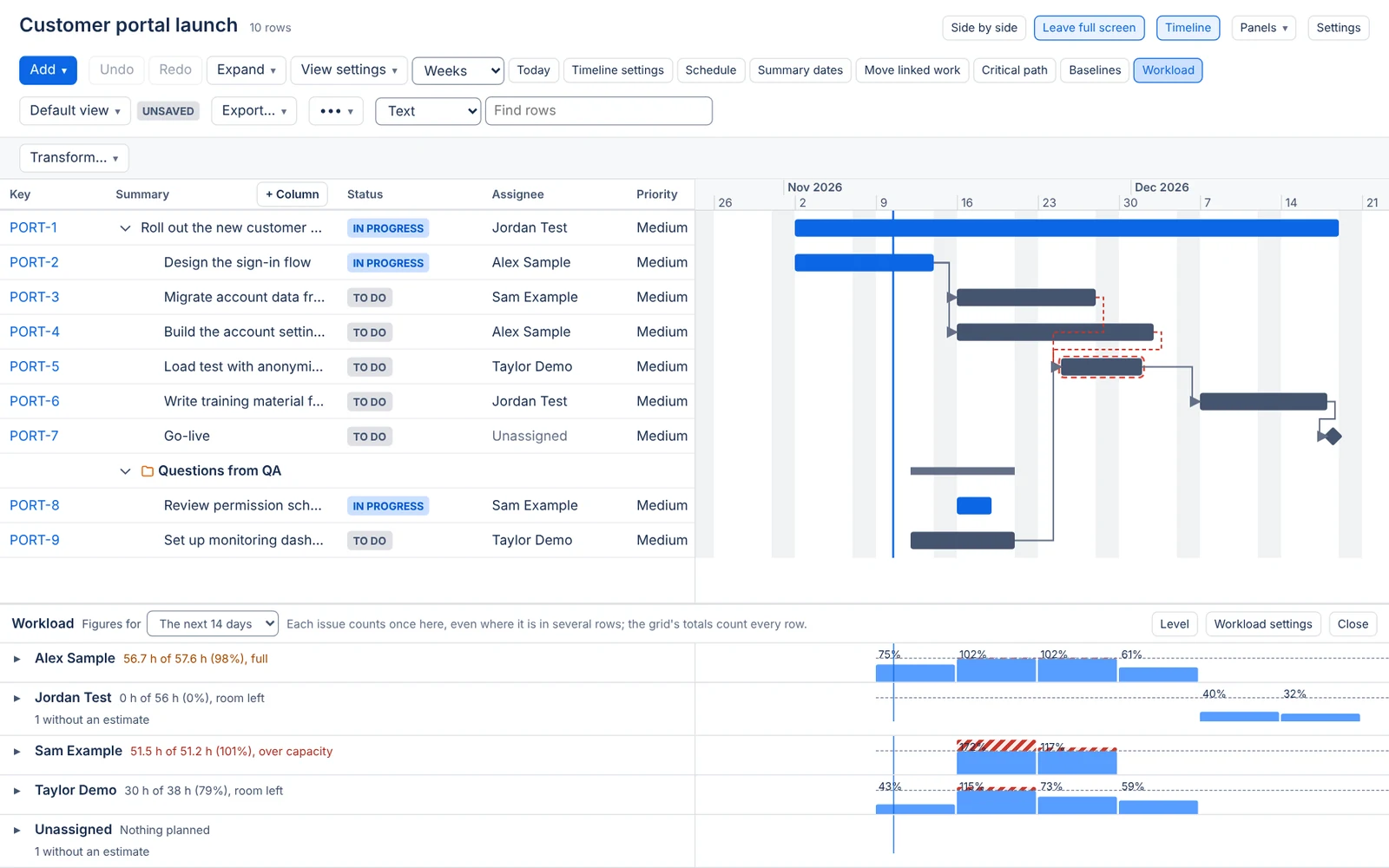
Turn on the timeline, then select Workload in the timeline's row under the toolbar. The workload opens under the grid and the timeline, on the same time scale, and scrolls sideways with the timeline. It needs a saved hierarchy.
There is a lane for each person with open work in the hierarchy, for each member of the hierarchy's teams always shown, and for each placeholder person. Unassigned comes last.
- Each period of the zoom (a day, week, month or quarter) gets a bar of the hours planned, against a dashed line at the person's hours.
- From 85% of the hours, the period is full, in its own colour. Past 100%, it is over capacity: the bar is striped and shows its percentage, so colour is never the only sign.
- Planned work with no hours to compare it with reads "no hours available".
Beside each name are the figures for the period picked under Figures for: The next 7 days, The next 14 days or The next 30 days. They read, for example, "36 h of 40 h (90%), full". Below them come the work overdue (its finish is past), the work without dates, and the number of work items without an estimate.
What counts as work
- A work item's effort is its remaining estimate, else its original estimate, else its story points times the hours a point is worth (8 by default, set in workload settings).
- A remaining estimate is spread over the person's hours from today, or from the bar's start if that is later, to the bar's finish. An original estimate or story points are spread over the whole bar, and only today and later show. When the person has no hours in the bar's span, the work is spread over the site's working days, and with none of those either, it all goes on the last day. Bars longer than 1,100 days are cut there.
- Each work item counts once, whatever rows it is in. The grid's totals count every row.
- Done work is left out. Planning items and folders don't count.
- Each work item counts its own estimate, and Jira's sums over subtasks are never used. A parent with 5 days of its own work left counts 5 days, whether its 2-day subtask is open or done. While the subtask is open, it counts its own 2 days. When your parents carry a total of the work items below them, turn on Parents carry the total of the work items below them.
- Hours set by hand replace a work item's estimate.
- Only work items you may see count. Restricted items and hidden work items in totals never change anyone's load.
Whose hours you see
With Edit on the hierarchy, you see each person's hours: the members of the teams always shown, the assignees of the hierarchy's work items, and the people with hours set by hand. With View only, the lanes show the hours planned and nobody's capacity, each bar sized against the most planned, and a note says why.
Giving work to someone else
Select the arrow next to a person's name to open their lane and see its work items. Drag a work item onto another person's lane, or focus it and press Alt+↑ or Alt+↓, to assign it to that person. The app changes the assignee in Jira as you, and Undo puts it back. If Jira refuses, the page says why.
This is off when the hierarchy's dates are locked for you. A work item can't be assigned to a placeholder person: set hours by hand for it instead.
Workload settings
Workload settings, in the workload's toolbar, shows the settings to people with Edit on the hierarchy. People with Control can change them. They belong to the hierarchy and are the same for everyone.
| Setting | What it does |
|---|---|
| Story points field | The field that holds story points. By default, the site's. |
| Hours per story point | What one point is worth in hours, 8 by default. |
| Hours per story point by project | A different worth for some projects, where their teams count points differently. |
| Parents carry the total of the work items below them | Off by default. See below. |
| Teams always shown | Teams whose people get a lane, with work in the hierarchy or not. Up to 50. |
| Positions in this hierarchy | The share of a working day each position gives this hierarchy's work. Left empty, the site's share applies. |
| Commitments | The share of a person's hours that goes to this hierarchy, from a given day. 100% unless set. |
| Placeholder people | Stand-ins for people not picked yet. See Placeholder people. |
Leave Parents carry the total of the work items below them clear when each work item's estimate is its own work, as Jira keeps it. Tick it when a parent's estimate is a total of the work items below it, typed by hand. A parent with a work item below it that has an estimate, done or not, then counts none of its own, so the work isn't counted twice.
Hours set by hand
By default, a work item's estimate is spread over its bar for its assignee. Hours set by hand replace that in this hierarchy's workload, and several people can share one work item.
- Open a person's lane with the arrow next to their name, then click a work item's bar, or focus it and press Enter.
- In Hours for PLAN-1, fill in an entry for each person: the Person, the First day and Last day, the Hours, and How the hours count: a day or in all. Add a person adds another entry.
- Select Save. Clear all removes every entry and brings the estimate back.
With a day, the person gets those hours on each day between the two dates that they work. With in all, the hours are spread over those days in proportion to the person's hours, as an original estimate is.
For example, PLAN-7 needs a designer and a developer. You give Lee 4 hours a day from 9 to 10 November, and Kim 20 hours in all from 9 to 13 November. Both lanes show their share of PLAN-7, and its estimate no longer counts.
- A work item's assignee counts only the hours given to them.
- Hours set by hand count even when parents carry totals.
- Only today and later show. An entry that ended before today counts as overdue.
- Someone with no hours on any of the entry's days follows the site's working days.
- A work item has at most 50 entries, a hierarchy at most 20,000. One entry spans at most two years and holds at most 10,000 hours.
Setting hours needs Edit on the hierarchy, with its dates unlocked for you. Everyone who can open the hierarchy and see the work item sees its hours set by hand, as they see its assignee.
Placeholder people
A placeholder person stands in for someone not picked yet, such as a developer still to hire. Their lane shows the work planned for them against their hours before anyone is named.
In Workload settings, under Placeholder people, select Add a placeholder. Give it a name and, if you like, its hours a working day. Without hours, it has the site calendar's. Its lane reads, for example, "Developer to hire (placeholder)".
- You give a placeholder work with hours set by hand. A placeholder isn't a Jira user, so no work item can be assigned to it.
- It works on the site calendar's working days and follows its holidays. It has no position, commitment, team or time off.
- Removing a placeholder removes its hours set by hand in that hierarchy.
- A hierarchy can have up to 50 placeholders. Adding, renaming and removing them needs Control. Anyone who can open the hierarchy sees them.
Their work across Jira
A person in your team may also work on work items outside this hierarchy. When the hierarchy has teams always shown, the workload offers Their work across Jira. Ticked, it shows a lane for each member of those teams. Each lane counts their open work in this hierarchy and their open work items anywhere else in Jira that you can see, against all of their hours. Your browser remembers your choice. It is off until you tick it.
- Only the people of the teams always shown get lanes. When you untick it, the hierarchy's own lanes come back.
- All of their hours count, so this hierarchy's commitments and position shares don't apply. The site's position shares, their weekly hours, time off and holidays still do.
- A work item from elsewhere counts the same way as the hierarchy's work items. Its dates come from the timeline's start and finish fields when those are Jira fields. When the timeline uses an app date field, the site's Start date and Due date stand in. A missing end comes from the sprint.
- In an opened lane, work items from elsewhere are drawn dashed. You change them in Jira: they can't be dragged or given hours by hand here.
- At most 2,500 work items from elsewhere are counted. The workload says so when you can see more than that.
The app finds these work items with one search as the app, shared by everyone who opens a workload for the same people, and then shows each person only the work items they may see. The first search reads each work item from Jira once, at about one Jira API point per work item. Later searches read only the work items that changed since, and cost nothing when nothing changed. Once a day, the search runs in full again.
Levelling
Level, in the workload's toolbar, moves work later where a person has more work than hours. You see every change before anything is written.
- Select Level.
- Under Whose work, pick Everyone in the workload or one person.
- Select Preview. The moves open as a preview in the Write-backs panel, named "Levelling".
- Untick any move you don't want, then select Apply.
How the moves are worked out:
- Each person is levelled on their own. Their work items are placed one at a time, highest priority first, in the order of Jira's priority list. Work items of the same priority go by start date, then by key.
- A work item that fits beside the work already placed keeps its dates. Otherwise it moves to the first later start where it fits, up to 250 working days later, and keeps its length in working days. Work never moves earlier.
- A work item too large for the person's hours wherever it goes stays where it is, and the preview names it. Later work fits around it.
- Only this hierarchy's work items move, and only those that haven't started (their start is today or later), with dates and an estimate and no hours set by hand. When parents carry totals, a parent whose work is counted through the work items below it doesn't move. Everything else counts where it is: started and overdue work, hours set by hand, placeholder people's hours and, when Their work across Jira is ticked, the work elsewhere in Jira.
- Dependencies aren't followed. Run Schedule afterwards to move the work that waits for a moved work item.
- One run moves at most 500 work items. Past that, level one person at a time.
Apply writes the new dates to Jira as you, never as the app, in one run you can undo, as with Schedule. A preview more than 5 minutes old has to be worked out again. Levelling needs the same rights as Schedule: Edit on the hierarchy, the right to run write-backs, and the dates unlocked for you.
The workload gadget
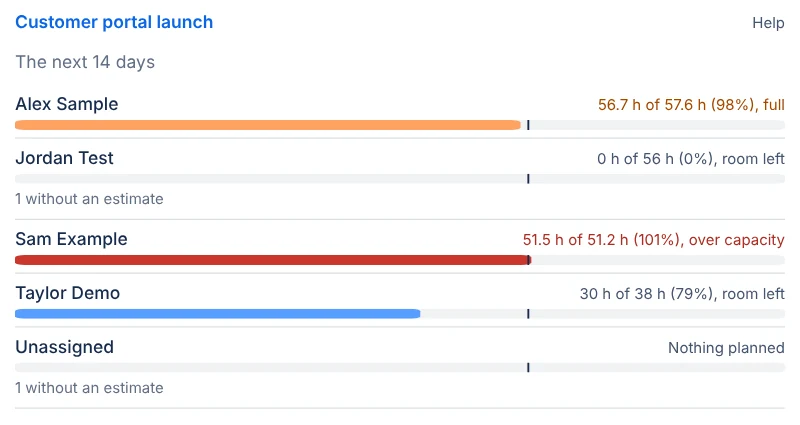
The Hierarchy workload gadget puts a hierarchy's workload on a Jira dashboard, with a row per person. Each row shows the person's figures, a bar of their load against their hours, and their overdue and undated work. In the gadget's settings you choose:
- the Hierarchy;
- the period, under Figures for: the next 7, 14 or 30 days;
- Their work across Jira, to show the people of the teams always shown with their open work items anywhere in Jira that each viewer can see.
The gadget counts the same people and the same work as the workload under the timeline. Its bars use each work item's Jira dates: the timeline's start and finish fields when they are Jira fields, else the site's Start date and Due date, with the sprint for a missing end. It doesn't read app date fields.
Each viewer sees only the work items they may see. Viewers with Edit on the hierarchy see people's hours. With View only, the rows show the work planned, and each bar is its share of the most planned. The gadget reads the workload each time the dashboard shows it. If some work items couldn't be read in time, it says how many and leaves them out.
Who can do what
| To | You need |
|---|---|
| Open Teams and capacity, see the teams and holiday calendars | Access to the app |
| Create teams, choose their people and managers, change positions and holiday calendars | Jira admin or app admin |
| Change a team's name, weekly hours and holiday calendar | Manager of the team, or an admin |
| See a person's position, weekly hours and time off | That person, a manager of a team they are in, or an admin |
| Change a person's position and weekly hours | A manager of a team they are in, or an admin |
| Change a person's time off | That person, a manager of a team they are in, or an admin |
| Open the workload and see the work planned | View on the hierarchy |
| See each person's hours in the workload | Edit |
| Give a work item to someone else | View, and Jira's permission to assign the work item |
| Set hours by hand | Edit |
| See the workload settings | Edit |
| Change the workload settings and placeholder people | Control |
| Level | Edit, and the right to run write-backs |
Giving work to someone else, setting hours by hand and levelling also need the dates to be unlocked for you.
Questions about the app? Write to info@plugincraft.ca.