Scheduling
Move work to the dates its dependencies allow, set parents' dates from the work items below them, see which work items can't slip, and compare the plan with a baseline.
These tools work on the timeline, from its row under the toolbar, which shows while the Timeline switch is on. They use the dependencies drawn there, with their types and lags.
Schedule
Schedule moves work that starts too early for its dependencies to the earliest dates they allow. You see every change before anything is written.
- Select Schedule in the timeline's row.
- Under Work items, pick The whole hierarchy, the selected rows, or the focused row. The work items below the rows you pick are included.
- Tick Also pull work earlier where its dependencies allow to also move work that starts later than needed back to the earliest date allowed. Without it, Schedule moves only late work.
- Select Preview. The changes open as a preview in the Write-backs panel, one line per date, as old value → new value.
- Untick any change you don't want, then select Apply.
For example, PLAN-1 finishes on Thursday 12 November, and PLAN-2 waits for it (finish to start, no lag). PLAN-2 is planned from Wednesday 11 to Friday 13 November, so it starts before PLAN-1 finishes. Schedule proposes Friday 13 to Tuesday 17 November: PLAN-2 keeps its three working days and skips the weekend.
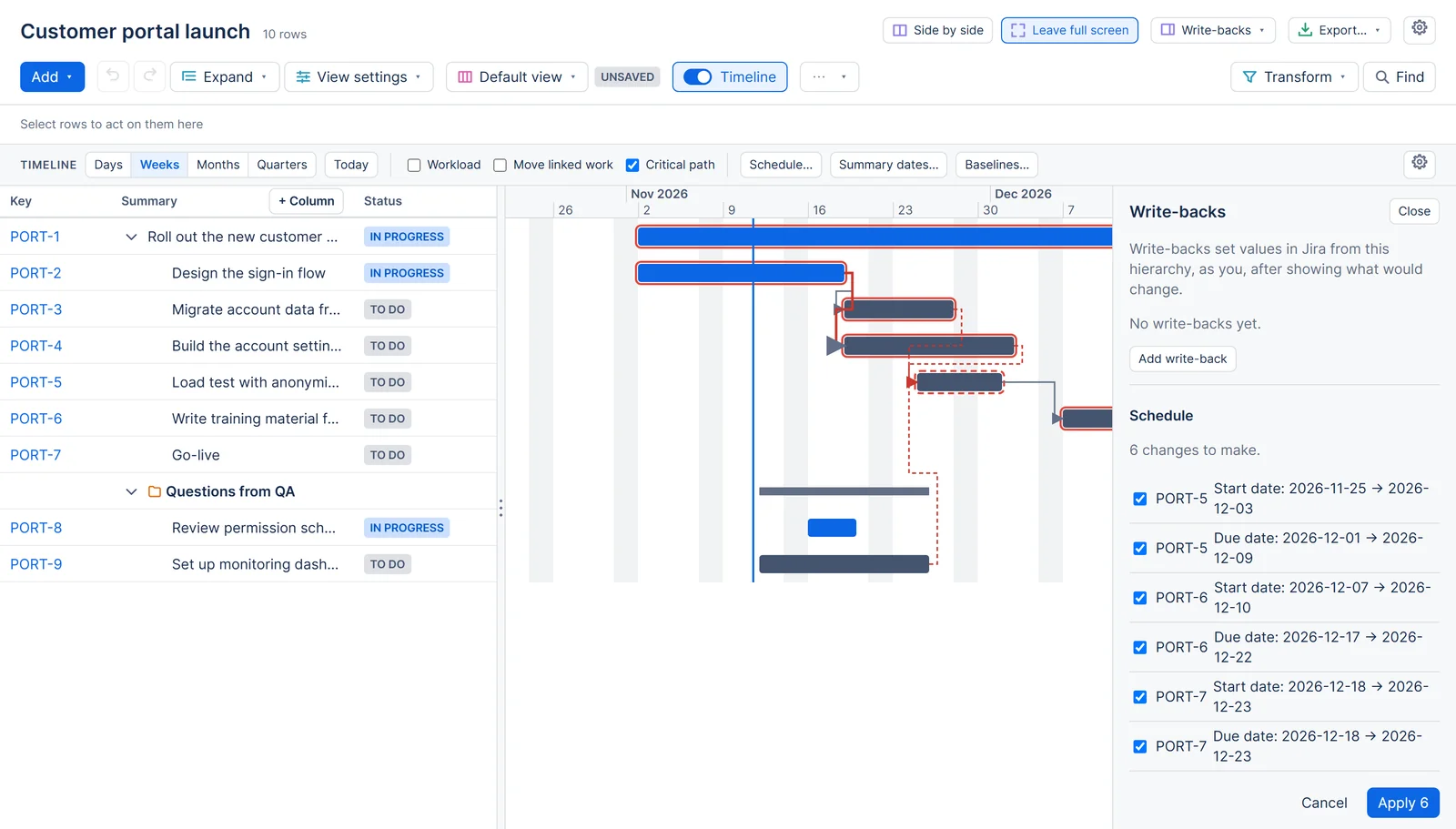
How Schedule works out the dates
- Work items are taken in dependency order. Each work item that waits takes the latest date that all its dependencies allow, by their types and lags, on a working day. It keeps its length in working days.
- Done work items never move.
- A parent without dates stands for the dated work items below it, so a dependency on the parent waits for all of them. A work item that waits needs dates of its own to move. The preview lists the work items it skipped.
- An end estimated from a sprint gets a real date when its work item moves.
- If work items wait for each other in a loop, nothing is proposed, and the page names the work items in the loop.
- A work item that appears in several rows counts once, at its first row in the scope.
- One run moves at most 500 work items. If more would move, pick fewer rows.
Applying and undoing
Apply writes the dates to Jira as you, in batches. Before each batch, the app reads the work items again and leaves alone any date that changed since the preview. Jira refuses any date you may not change, and the run lists those. A preview more than 5 minutes old has to be worked out again before it can be applied.
A run writes Jira fields only. If the timeline uses an app date field, its changes show in the preview, marked, and are left out.
The run is kept under Runs in the Write-backs panel, named "Schedule". Its Undo puts back each date that still holds what the run wrote. See Runs and undo.
Summary dates
Summary dates sets each parent work item's start and finish to the earliest start and the latest finish of the work items below it. It uses the same choice of work items as Schedule, the same preview in the Write-backs panel, and the same Apply and Undo. Its runs are named "Summary dates".
For example, an epic has three stories planned from 2 to 6 November, 9 to 13 November and 16 to 20 November. Summary dates proposes 2 November as the epic's start and 20 November as its finish.
- It works from the bottom up. A parent below another parent gets its dates first, so a whole branch agrees.
- Folders and planning items are looked through: the work items below them count for the parent work item above.
- A work item's own dates count only when nothing below it has dates. An end estimated from a sprint counts, and a parent with an estimated end gets real dates.
- Parents whose dates already match are left out. Done parents are left as they are, and the preview names them.
- One run changes at most 500 work items.
Moving linked work
When Move linked work is ticked in the timeline's row, a bar you move by dragging or with Alt and the arrow keys takes along the work that waits for it. Your browser remembers the choice.
- The work that moves is the work that waits for the bar you moved: directly, through other work items, or through a parent without dates.
- Each of those work items moves only where it would otherwise be late, to the earliest date its dependencies allow, and keeps its length in working days. Nothing moves earlier, and done work never moves.
- The bar you moved stays where you put it.
While you drag, dashed outlines show where the linked work items will land, and a note by the bar says how many more work items the drop moves. When you drop, the app writes every date as you, a few work items at a time. A note says what moved, and which work items Jira refused. Linked work items without dates stay where they are, and the note names them.
One Undo puts back the whole move. Work items that someone changed in the meantime are left as they are, and the page says how many.
If the work after the bar waits in a loop, only the bar moves, and the page names the loop. If more than 500 linked work items would move, nothing moves and the bar goes back.
Critical path and slack
A work item's slack is the number of working days it can slip before it makes a work item that waits for it late, or delays the last finish of the hierarchy's work items.
Tick Critical path in the timeline's row to outline the open work items with no slack. Their arrows are drawn thicker, and each bar's name says "on the critical path" or gives its slack, such as "slack of 3 working days". A work item with less than no slack has a dependency that is late already. Your browser remembers the choice.
The Slack column shows the same number on each work item row while the timeline is open. Without the timeline, it is empty. Add it from + Column.
- Done work items have no slack, and the work that waits for them still counts from their dates.
- Work items without dates of their own are left out.
- When links form a loop, there is no critical path, and the timeline names the work items in the loop.
- Slack and the critical path come from the work items and links you can see. Two people who see different work items may get different paths.
Slack and the critical path cost no Jira requests: your browser works them out from what the timeline already shows.
Baselines
A baseline keeps the dates every item in the hierarchy has at one moment, so you can compare them later. Select Baselines in the timeline's row.
- Under Shown on the timeline, pick the baseline you want to see, or None. Each person picks their own, and the browser remembers it for each hierarchy.
- To save the dates as they are now, give the baseline a Name and select Save. The name starts as "Baseline of" and today's date.
- Delete removes a baseline.
A hierarchy keeps up to 10 baselines. Saving and deleting need Edit on the hierarchy, with the dates unlocked for you. Anyone with View can show one.
A baseline keeps:
- for each work item with dates of its own, its start and finish as the timeline draws them, ends estimated from a sprint included, and its remaining estimate in hours when it has one;
- for each planning item, the span of the work items below it.
Work items without dates are left out. When a planning item later becomes a work item, the baseline follows it to the new work item.
The baseline you show draws as a thin line under each bar. Each bar's name says how far its finish moved, such as "3 working days later than the baseline", "earlier than the baseline" or "as in the baseline", counted in working days on the site's calendar. The Variance column gives the same number on each work item row, with later finishes as positive numbers. Without a baseline shown, it is empty.
A baseline shows each person only the work items they may see. Two people who show the same baseline may see different items, and nothing says how many are left out.
Questions about the app? Write to info@plugincraft.ca.