Conditional formatting
Formatting rules colour rows and cells from their values, so that overdue work, large estimates or a status you watch stand out. Rules are kept with the view, so everyone who uses the view sees the same colours. Working out the colours reads nothing more from Jira and costs no Jira API points.
On this page
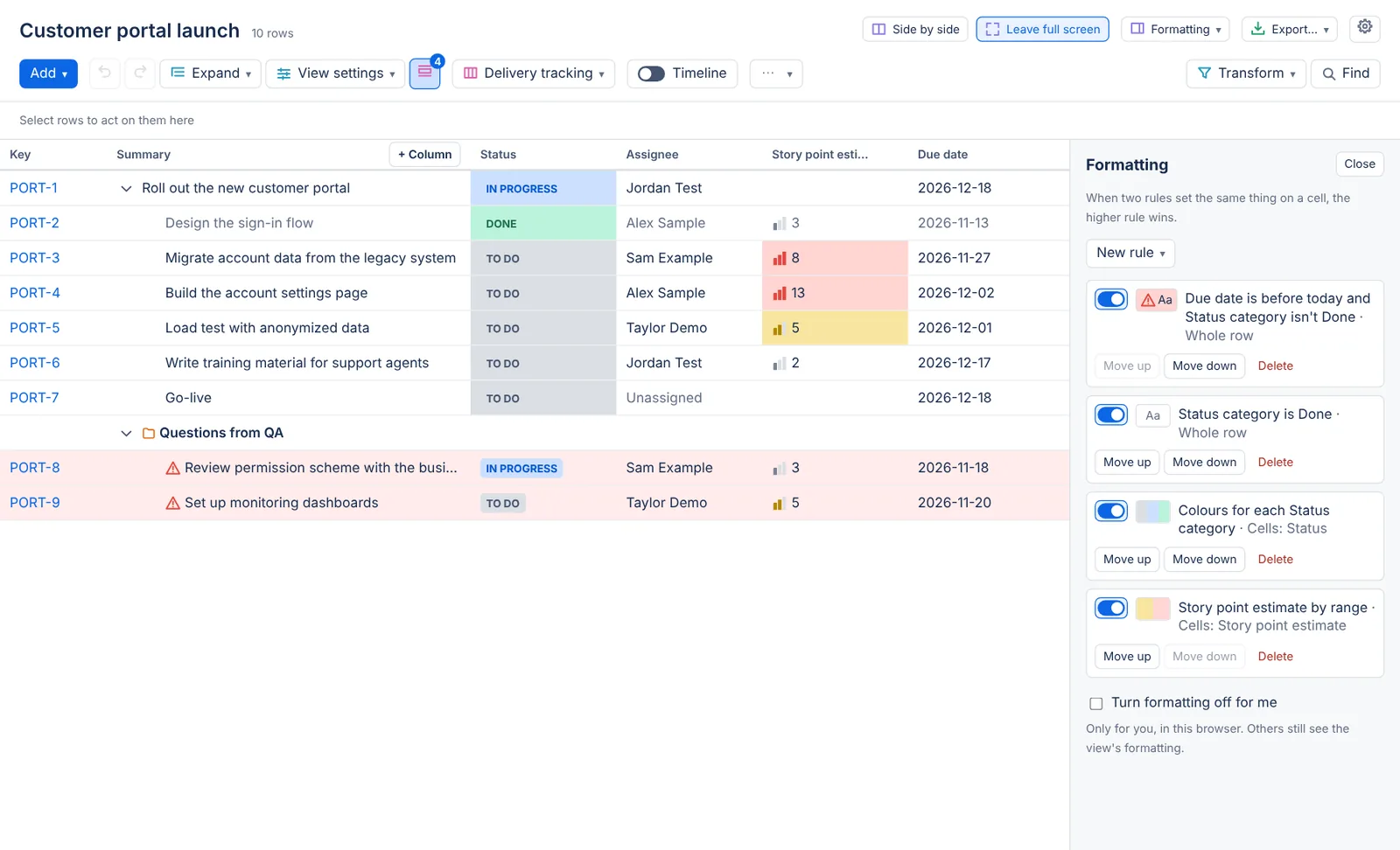
The Formatting panel
Select Formatting in the toolbar, the icon after View settings. The Panels menu offers it too. While rules are on, their number shows on the icon's corner.
The panel lists the view's rules, top first. Each card shows the rule's name, a sample of its style and where it draws, such as Whole row or Cells: Status. Its switch turns the rule off without deleting it, and Move up, Move down and Delete are on the card. When two rules set the same thing on a cell, such as its fill, the higher rule wins. Bold, strikethrough and faded add up.
A rule is named after its tests, in each viewer's language, for example "Due date is before today and Status category isn't Done". You can give it a name of your own in Name (optional).
A rule that can't apply says why on its card, for example when it reads a column that is no longer in the view.
Kinds of rules
Select New rule and pick a kind:
| Kind | What it does | Example |
|---|---|---|
| Highlight when… | Colours the rows or cells that pass up to 5 tests, or a formula. | Due date is before today, and Status category isn't Done. |
| Colour each value… | Gives each value of one field its own colour: each status, priority, person or option, or each status category. Up to 50 values. | To Do grey, In Review yellow, Blocked red. |
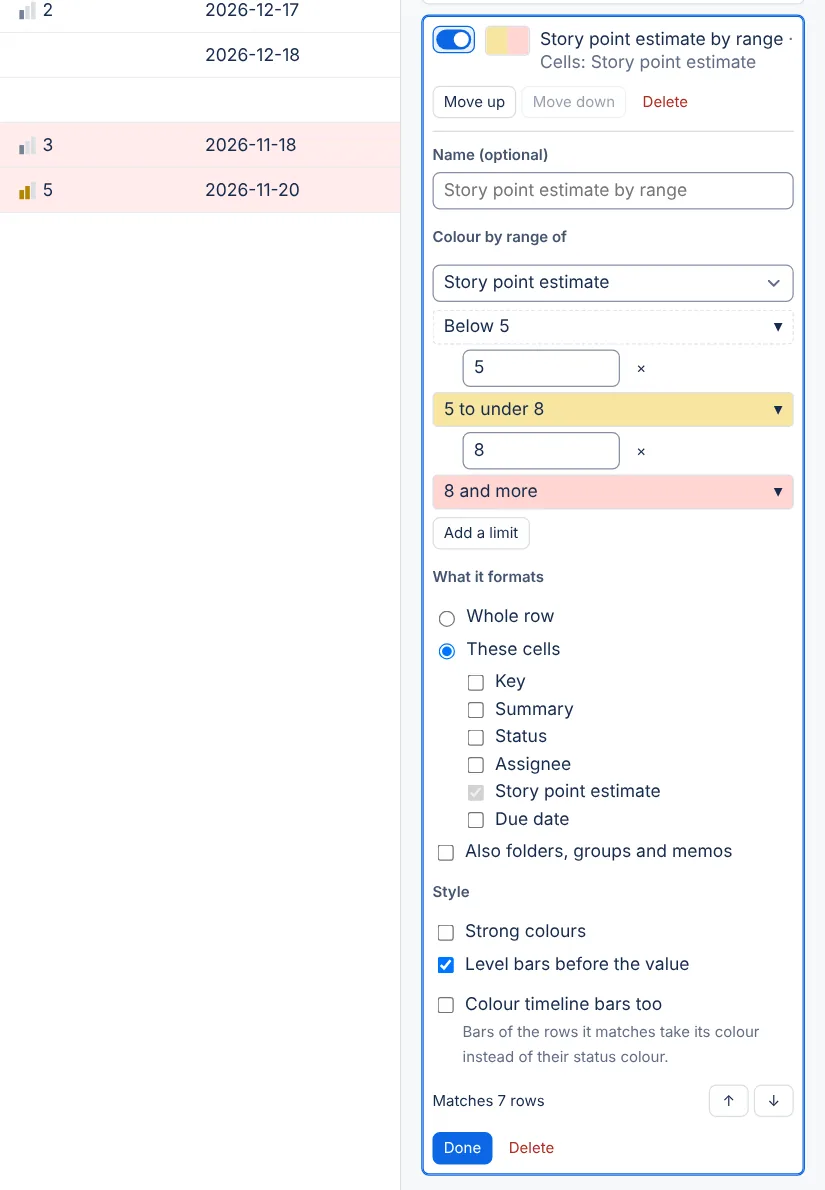
| Colour by range… | Splits numbers, times or dates into up to 5 bands, each in its own colour. | Story points below 5 plain, 5 to under 8 yellow, 8 and more red. |
Colour by range… is offered when the view has a column of numbers, times or dates, or when the site has a story points field.
The same menu has Quick starts, rules ready to use: Overdue, Due in the next 7 days, Unassigned, Assigned to me, Flagged, Done looks faded, Not updated in 14 days, Status category colours and Large work items, by story points. Flagged shows only where the site has Jira's Flagged field, and the last one only where it has a story points field. A quick start is an ordinary rule, so you can change it afterwards. New rules go to the top of the list.
Making a Highlight when rule
- Select New rule, then Highlight when…. The editor opens under the rule's card.
- In Field or column, pick what the test reads: one of the view's columns, any field the site has, or a fact about the row, such as its level, its row type or whether it has rows below.
- Pick a Comparison, such as is any of, is more than or is before today, then the Value. Values come from the rows you have loaded, from Jira's own list for statuses, priorities and work types, or as a day or a number of days. For people, Me means whoever is looking.
- For more tests, select Add a test, then say whether rows must pass all of these tests or any of these tests.
- Under What it formats, choose Whole row, or These cells and the columns. Key and Summary count as columns here. Only work items and planning items are formatted unless you tick Also folders, groups and memos.
- Under Style, pick a Fill, light or Strong fill, a Text colour, and Bold, Strikethrough or Faded. An Icon adds one of the app's icons, or an Own symbol you type, such as ★, before the value or, with Show it in place of the value, instead of it. In cells, Draw the value as a lozenge puts the value in a lozenge of the fill colour.
- Check the count under the editor, such as "Matches 4 rows". The arrows next to it select each matching row in turn.
- Select Done.
The rule reaches the grid once every test has a value. Until then the editor says what is missing, and the grid stays as it was.
Edit as formula turns the tests into the formula they stand for, such as date(duedate) < today() and status.category != "done", so you can add to it. Use tests instead goes back to tests. A formula here works as in a formula column, with two exceptions: it can't run a query (JQL{} or TQL{}) and it can't read past values. Like formula columns, it adds up only the rows you can see.
A typed symbol is drawn as text, so each viewer's computer draws it in its own way, and it may look different, or not show at all, on another system.
Colour each value, or by range
Colour each value… starts on the view's first column of statuses, options or people, or on Status for whole rows. It fills in the values the rows show, most common first, each with a colour. A status takes the colour of its category. Each value is a chip: select it to change its colour, select × to remove it, or use Add a value. For statuses, Colour by chooses Each status or Each status category. Tick Draw the values as lozenges to draw them as lozenges, and Strong colours for bolder fills.
Colour by range… starts on the view's first column of numbers, times or dates, or on story points for whole rows. It proposes limits from the values the rows show, for example 3 and 8 for estimates of 2, 3, 5, 8 and 13 points. The bands show as chips, such as "Below 5", "5 to under 8" and "8 and more". Select a chip to pick its colour, or Plain for none. Type a limit to change it, use Add a limit for up to 4 limits, and remove one with the × next to it. For dates, limits count days from today: 0 is today, 7 a week from today and -7 a week ago. Level bars before the value adds small bars before the value, one lit for the lowest band and all of them for the highest.
Formatting a column from its menu
Each column's header menu, Key and Summary included, has Format this column…. It makes a rule that colours the column's cells yellow and tests the column's value, taken from the selected row. With a row in In Review selected, for example, the rule is "Status is In Review". The rule shows on the grid at once and opens in the editor, where you can change it.
A column of statuses, options or people also offers Colour each value…, and a column of numbers, times or dates offers Colour by range…. Each makes a rule of that kind on the column's cells.
Timeline bars
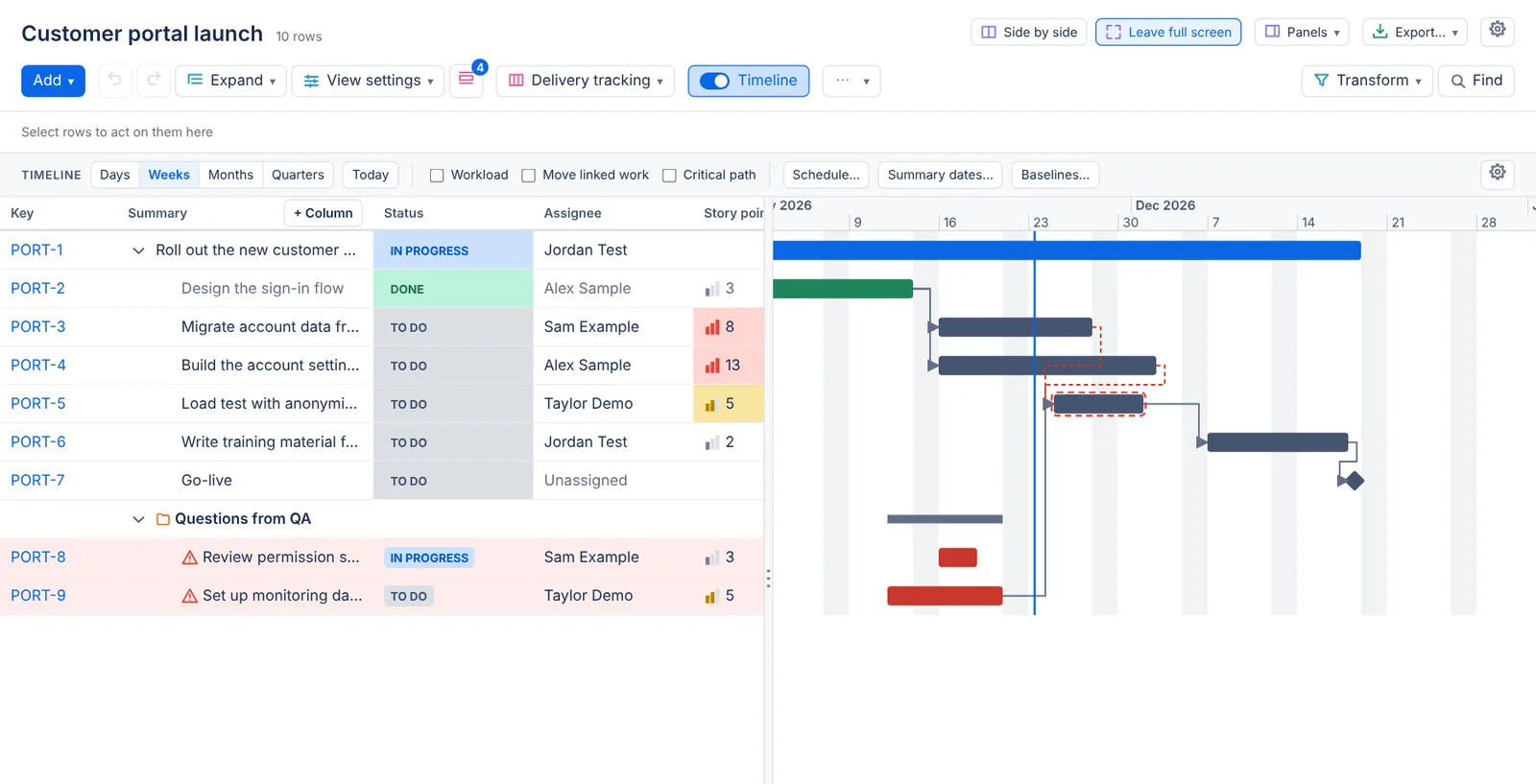
Tick Colour timeline bars too on a rule to give the bars of the rows it matches its colour: its fill, or its text colour when it has no fill. Where several such rules match a row, the highest one wins. A rule without the option never changes bars. The bar's label names the rule, so the colour is never the only sign. See Timeline.
Who sees and changes the rules
Rules belong to the view, as its columns do. Anyone who opens the hierarchy can change them on screen. The view menu then says Unsaved, and people who may edit the view can save the change into it. Anyone can keep it with Save as a new view…. See Views. A share link carries unsaved rules with the columns. When both together are too long for a link, the message after copying says what the link opens instead.
Turn formatting off for me, under the rules, gives you a plain grid in this browser. Everyone else still sees the view's formatting.
Dashboard gadgets that show the view draw its formatting too. The Excel export keeps fills, text colours, bold and strikethrough as you see them, in the colours of Jira's light theme. Icons, symbols and level bars aren't exported, so numbers stay numbers. CSV and JSON exports have no formatting.
What formatting never shows
A rule never colours a Restricted item row or a rule's own row, so a colour can't hint at what a hidden row holds. Colour is never the only sign either: a formatted cell's tooltip names the rules that apply, such as "Formatting: Status is To Do", and screen readers read the same words. A rule keeps a person by account id and name, never by email address.
Limits
A view holds up to 20 rules and 16,000 characters of rules. A rule has up to 5 tests, a test picks up to 50 values, and a range has up to 4 limits. A typed symbol has at most 3 characters.
Questions about the app? Write to info@plugincraft.ca.