Timeline
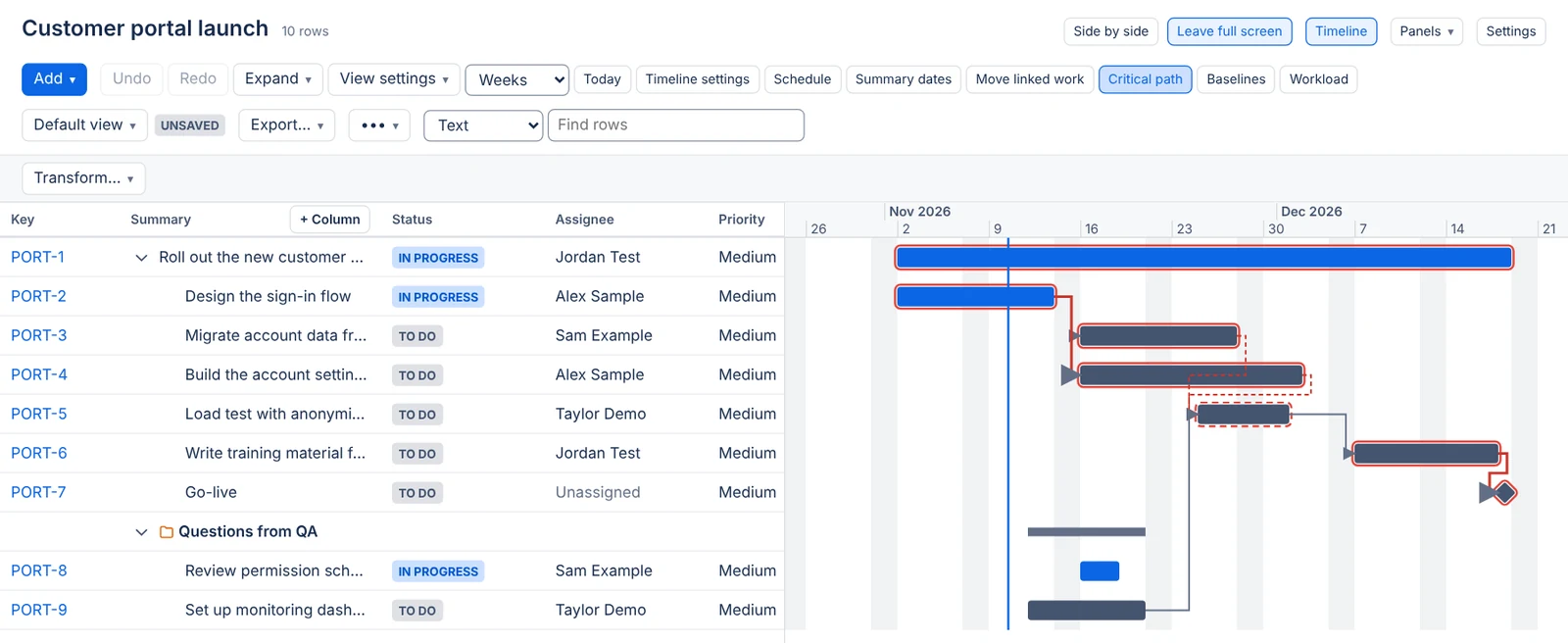
The timeline shows a hierarchy's work items as bars on a calendar, beside the grid. You change dates by dragging the bars, and you draw the dependencies between work items as arrows.
On this page
Opening the timeline
Turn on the Timeline switch in the toolbar, or press ] anywhere on the page except in a field. The timeline opens to the right of the grid, with each bar on its row's line. Collapsing a row, filtering, sorting or grouping changes the grid and the timeline together. Turn the switch off, or press ] again, to close it. Your browser remembers the choice for you on each hierarchy. Views don't keep it.
The timeline scrolls up and down with the grid, and sideways on its own. It opens on today.
A divider with a grip stands between the rows and the timeline. Drag it to give either side more room, or focus it and press ← or → to move it by 5%, and Home or End to take it to either bound. The rows keep from 20% to 80% of the room, and your browser remembers where you left the divider. On a narrow screen the timeline goes under the rows, without a divider.
While the timeline is on, its options get a row of their own under the toolbar. When it is off, none of them show.
| Option | What it does |
|---|---|
| Days, Weeks, Months, Quarters | The zoom: a column per day, week, month or quarter. |
| Today | Scrolls back to today. |
| Workload | Shows each person's load under the timeline. See Teams and workload. |
| Move linked work | When ticked, a bar you move takes along the work that waits for it. See Moving linked work. |
| Critical path | When ticked, outlines the work items with no slack. See Critical path and slack. |
| Schedule | Moves work that starts too early for its dependencies. See Schedule. |
| Summary dates | Sets each parent's dates from the work items below it. See Summary dates. |
| Baselines | Saves the dates as they are now, or shows a saved set under the bars. See Baselines. |
| Timeline settings (a gear) | Chooses the date fields, the dependency link types and the milestone types. See Timeline settings. |
The zoom you pick in this row lasts while the page is open. Workload shows where the hierarchy has one. Schedule and Summary dates appear only for people who may use them. In query mode, where the tree isn't saved, Workload and Baselines don't appear.
Reading the bars
A bar runs from the work item's start date to its finish date. By default the start is the site's Start date field and the finish is Due date. Timeline settings can use other date fields.
- The bar's colour follows the work item's status category (to do, in progress or done), in Jira's colours, unless a formatting rule with Colour timeline bars too matches the row. See Timeline bars.
- When one end is missing, the app takes it from the work item's sprint: the active sprint, else a future one, else the last closed one. Without a sprint, the bar ends on the day of its other end. An end found this way is estimated, and it is drawn hollow. A work item with no dates at all takes its sprint's dates.
- A work item with no dates and no sprint shows a small dashed bar at today, which you can drag into place. When you can't change the timeline, it has no bar.
- A work item that starts and finishes on the same day is a milestone, drawn as a diamond. Work items of the types picked under Milestones are drawn the same way, on their finish date.
- A row without a bar of its own, such as a folder, a group made by a rule or a work item without dates, shows the span of the bars below it, including those of collapsed rows.
- At day and week zoom, the weekends and holidays of the site's working calendar are shaded. A line marks today.
Hover over a bar to see its work item and dates. Click a bar to select its row in the grid.
When someone changes a sprint's dates, the bars that take their dates from that sprint follow.
Timeline settings
What the timeline plans with belongs to the hierarchy and is the same for everyone who opens it. Select Timeline settings, the gear at the end of the timeline's row, to change it.
| Setting | What it chooses | Default |
|---|---|---|
| Bars start on | The date field bars start on: a Jira date or date-time field, or one of the hierarchy's app date fields | The site's Start date field |
| Bars finish on | The date field bars finish on, of the same kinds. It must be a different field from the start. | Due date |
| Dependencies | The work item link types drawn as arrows, up to 20 | Blocks |
| Milestones | The work types drawn as milestones, up to 50 | None |
| Opens showing | The zoom the timeline opens at | Weeks |
Link types without a direction, such as Relates, can't be dependencies, because they don't say which work item comes first. With no link type picked, no arrows are drawn.
An app date field keeps its dates in TreeCraft, so they don't show in Jira's work item view, filters or boards. The settings warn you when you pick one, and each bar that uses one says so.
Apply saves the dates, dependencies and milestones for the hierarchy at once. Only people with Control on the hierarchy can change them. Everyone else can change the zoom only. The zoom chosen under Opens showing belongs to the view: save the view to keep it.
Changing dates
You change dates on the timeline as yourself. Jira checks each change against your permissions, as it does for an edit in the grid.
- Drag a bar to move it. Both dates move, and the bar keeps its length in working days on the site's calendar. A five-day task stays five working days long when you drag it across a weekend or a holiday.
- Drag one end of a bar to move only that date. An end can't pass the other end.
- Drag the dashed bar of a work item without dates to give it dates. Dragged by its body, it gets both dates on the day you drop it. Dragged by its right end, it stretches from today.
- On a focused bar, Alt+← and Alt+→ move it one working day, and Alt+Shift+← and Alt+Shift+→ move its finish only.
Drags snap to days at day and week zoom, and to weeks at month and quarter zoom. Escape cancels a drag. An estimated end gets a real date when you move the whole bar.
A date-time field keeps its time of day and moves by whole days in your time zone. One that had no value gets noon UTC on the chosen day.
The bar shows its new dates at once. Undo (Ctrl+Z) puts both dates back, as long as nobody changed them since. If Jira refuses a change, for example because the field isn't on the work item's edit screen or you may not edit the work item, the bar goes back and gets an outline. Its label and the note at the top of the page give Jira's reason.
Bars on app date fields need Edit on the hierarchy. A move on app date fields alone can't be undone, just as a note cell's edit can't.
When the dates are locked
In two cases the hierarchy's planning dates are read-only for you, on the timeline and in the grid:
- You can't see every work item in the hierarchy. The page says "You can't see every work item in this hierarchy, so you can't change its planning dates, on the timeline or in the grid." It never says which work items you can't see, or how many.
- The hierarchy shows each person their own work items, for example because its rules use
currentUser(). Its planning dates can't be changed on the timeline or in the grid, by anyone.
While the dates are locked, the bars don't move, and the grid's start and finish columns open no editor. You can't add or remove dependencies, save baselines, set hours by hand or give work to someone else in the workload. Write-backs, Schedule, Summary dates and levelling don't change those dates for you either. Other cells keep their usual rules.
Dependencies
The timeline draws the Jira work item links of the chosen types as arrows. An arrow goes from the work item that comes first (for Blocks, the one that blocks) to the work item that waits for it. The links stay in Jira: drawing or removing an arrow adds or removes the Jira link, as you.
- A late dependency is drawn dashed, in red. It is late when the waiting work item starts on or before the day the first work item finishes. The arrow's label says what is wrong, such as "late: PLAN-2 starts before PLAN-1 finishes".
- When the work item at the other end is scrolled away, under a collapsed row or without dates, the arrow is a short stub, and its label says why.
- You see an arrow only when you can see the work items at both ends.
Arrows follow the bars while you drag them.
Adding a dependency
Hover over a bar: a connector appears at its finish. Drag the connector onto another bar. The work item you drop it on then waits for the first one, with the first link type listed in Timeline settings.
From the keyboard, focus a bar and press D. In Add a dependency to PLAN-1:
- Under Other work item, search the hierarchy's work items by key or summary.
- Under Order, choose which work item comes first.
- Under Link type, pick a type, when the timeline draws more than one.
- Select Add dependency.
Adding or removing a link needs Jira's Link work items permission. If Jira refuses, the note at the top says why and nothing changes. Jira takes a moment to report a new link to the app. If the arrow doesn't show yet, the note says it will show when the timeline opens again.
Removing a dependency
Click an arrow, or focus it and press Enter, then select Remove link. Pressing Delete on an arrow goes straight to the confirmation. The Jira link is removed for everyone.
Undo after adding a link removes it, as long as Jira still has it. Undo after removing a link makes it again, as a new Jira link with the same type and lag, unless the two work items are already linked that way. A link someone changed in the meantime is left alone, and the page says so.
Dependency types and lag
Each dependency has a type and a lag. Open an arrow to change them.
| Type | The work item that waits |
|---|---|
| Finish to start (the default) | starts after the other work item finishes |
| Start to start | starts once the other work item has started |
| Finish to finish | finishes once the other work item has finished |
| Start to finish | finishes once the other work item has started |
The Lag is a number of working days between the two, from -365 to 365. A negative lag lets the work items overlap. For example, a start to start dependency with a lag of 2 lets testing start 2 working days after development starts.
The arrow joins the ends that the type ties, and its label names the type and lag, such as "PLAN-1 blocks PLAN-2 · start to start, lag of 2 working days". The late mark follows the type and lag too.
Jira's links have no place for a type or a lag, so TreeCraft keeps them with the hierarchy, for each link. Another hierarchy that shows the same link keeps its own. Changing them needs Edit on the hierarchy. People without Edit see them but can't change them. When someone changes a link's type in Jira, Jira replaces it with a new link, which starts again as finish to start with no lag.
Dependencies with planning items and folders
Jira links work items only. A dependency with a planning item or a folder at one end belongs to the hierarchy. You draw, change and remove it the same way, with a type and a lag. Its arrow reads, for example, "Phase 2 comes before PLAN-4".
- The bar of a planning item or folder is the span of the dated work items below it. When it comes first, its start is the earliest start below it and its finish is the latest finish below it.
- When a planning item or folder waits, the work items below it wait. With finish to start or start to start, none of them may start too early. With finish to finish or start to finish, the last of them may not finish too early. A work item below that breaks the dependency gets the late mark.
- Adding, changing or removing these dependencies needs Edit on the hierarchy. A planning item or folder can't depend on what is below it.
- You see such a dependency only when you can see the work item at its end, if it has one.
- When a planning item becomes a work item, its dependencies follow the new work item. A dependency between two work items belongs in Jira, so one that now joins two work items is no longer drawn.
Keyboard and screen readers
The timeline is one stop in the Tab order, and the divider beside it another. These keys work on them:
| Keys | Action |
|---|---|
| ] | Show or hide the timeline, from anywhere on the page except a field |
| ↑ / ↓ | Go to the next bar up or down, and select its row |
| Enter | On a bar: select its row. On an arrow: open the dependency |
| Alt+← / Alt+→ | Move the bar one working day |
| Alt+Shift+← / Alt+Shift+→ | Move the bar's finish one working day |
| D | Add a dependency to the focused bar |
| Delete | On an arrow: remove the link, after a confirmation |
| ← / → | On the divider: give the rows 5% less or more room |
| Home / End | On the divider: take it to its left or right bound |
Each bar is named by its work item and dates, with "estimated", "span of the work items below" or Jira's refusal where they apply. Arrows are named by their work items, as "PLAN-1 blocks PLAN-2", with "late" and the reason. Colour is never the only sign: estimated ends are hollow, late arrows are dashed and refused bars are outlined. In Windows high contrast mode, bars, arrows and the today line take the system's colours.
Who can do what
| To | You need |
|---|---|
| Open the timeline, show baselines and the critical path | View |
| Move bars on Jira date fields, add or remove Jira links | View, and Jira's permission to edit the work items or link them |
| Move bars on app date fields, change a dependency's type and lag, add dependencies with planning items and folders, save or delete baselines | Edit |
| Use Schedule and Summary dates | Edit, and the right to run write-backs |
| Change the timeline settings (dates, dependencies, milestones) | Control |
Everything that changes dates or dependencies also needs the dates to be unlocked for you. See When the dates are locked.
Questions about the app? Write to info@plugincraft.ca.