Write-backs
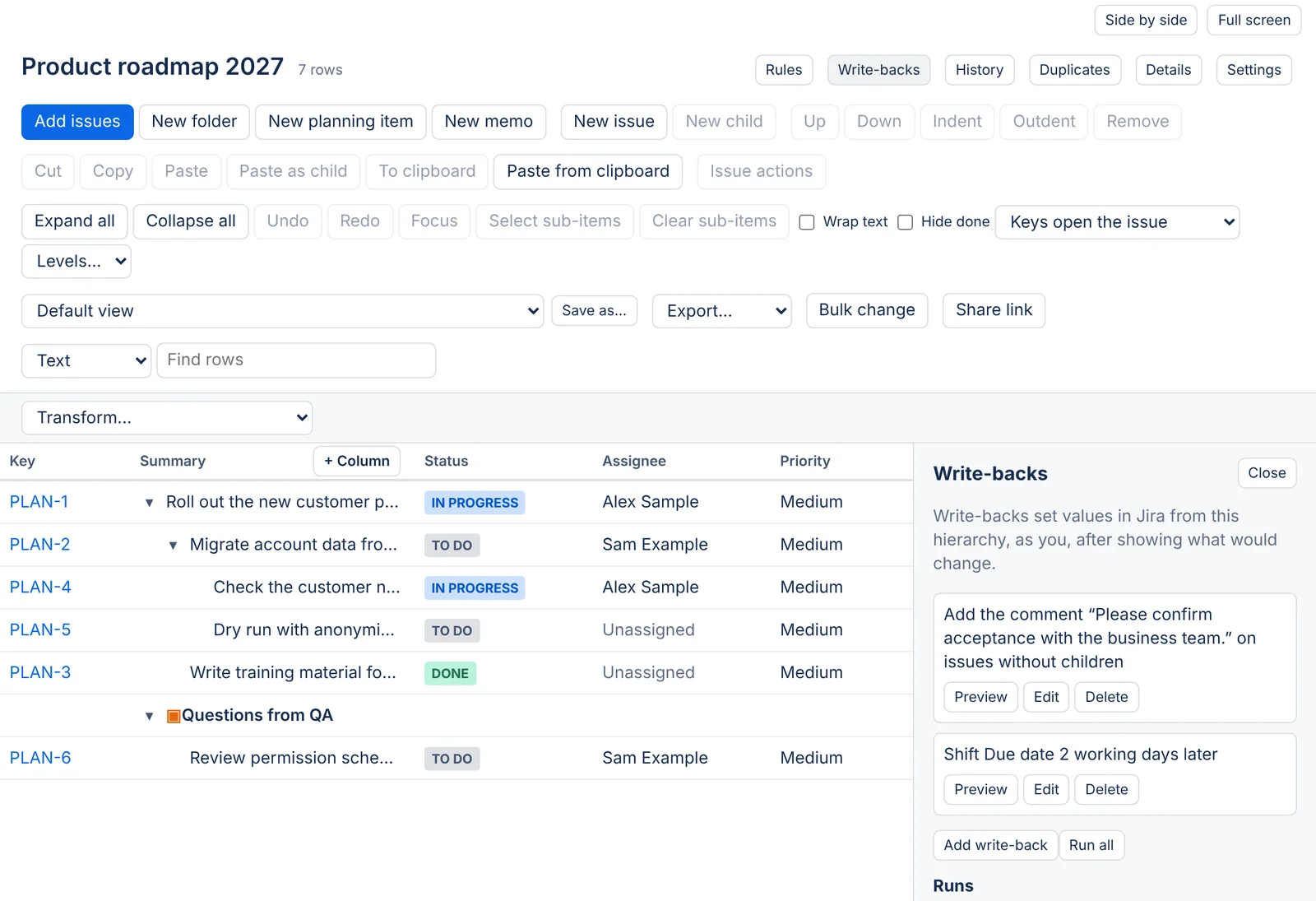
A write-back sets values in Jira from a hierarchy, such as copying each epic's story point total into its own field, or moving a parent to Done when all its children are done. It runs only when someone starts it, shows what it will change first, and can be undone.
On this page
Who may do what
The Write-backs panel is open to people with Edit access, who can run write-backs and see their runs and changes. To set one up, change it or delete it, you need Automate access. Jira admins can narrow both on the whole site in Automation permissions.
The app makes every change as the person who runs it, so Jira applies their permissions, screens, validators and workflows. A write-back never lets anyone change an issue they couldn't change in Jira.
Setting one up
Open Panels and choose Write-backs. Select Add write-back and pick a type.
Set a field
| Field | Choices |
|---|---|
| Field to set | The Jira field to write. |
| Value from | The total of a field below each issue, The progress below each issue (0 to 100) by status or by time, Another field of the same issue, or A fixed value. |
| On | Every issue, Issues with issues below them, or Issues with no issues below them. |
You can copy a field only into a field with the same kind of value. A fixed value with no values picked clears the field. An estimate is entered in hours.
Set parents' status from their children
For each issue that has issues below it in the hierarchy, the first case its children match gives the status to move it to:
- When every child is done
- When some children have started
- When no child has started
Each parent moves through its own workflow. A parent with no transition to that status shows in the preview and is left as it is.
Add a comment
This type adds the same comment to each issue in scope, as you. Undo takes back only the comments nobody has edited since.
Shift dates
This type moves one to five date or date-time fields by a whole number of Days, Working days or Weeks. A negative number moves dates earlier. Date-times keep their time of day. Working days follow the site's working calendar, so weekends and holidays are skipped.
Fields a write-back can set
Assignee, priority, summary, description, environment, resolution, due date, reporter, labels, components, fix versions, affects versions, sprint, original and remaining estimates, and custom fields of the common types: text, rich text, number, date, date-time, single and multiple choice, cascading choice, user, group, version, project, labels, Assets objects and teams. A status changes only through the parent status write-back.
For a Team or Assets objects field, the values to pick come from the issues in view. If none of them has a value set in that field yet, set one on an issue first, or copy from another field.
Running a write-back
Select Preview on a write-back. The app reads, as you, what each issue holds now, and lists every change it would make, written as old value → new value. The list leaves out issues that already have the value and issues you can't see. An issue that appears several times in the hierarchy is changed once.
Untick any change you don't want, then select Apply. The app makes the changes one at a time:
- If Jira refuses a change, the app records it with Jira's reason and the run goes on.
- Before each batch, the app reads Jira again. If a value changed since the preview, the app leaves it as it is.
- Stop ends the run between changes.
Keep the page open while a run is in progress: runs happen in your browser, because Jira applies your own permissions only to changes made as you. A run makes at most 2,000 changes. A run left unfinished shows as stopped after 30 minutes.
A write-back runs on the rows as shown. To run it on part of the tree, filter the view first with a transform or a tree query.
Run all
Run all previews every write-back of the hierarchy, in their order, in one preview with a section for each. When more than one write-back would change the same field of an issue, the preview flags both changes. Apply then runs them one after another, each as its own run. If an earlier write-back of the same run changed a value, the app treats it like any other change since the preview and leaves it as it is.
Runs and undo
Runs lists each run with who started it, when, its status (Running, Done, Partly done, Failed, Undone or Stopped), and how many changes were made, refused or left. Changes is the audit trail: it lists every change of a run with its value before and after, for the issues you can see.
Undo puts back the values a run changed, newest first, where nobody changed them since. Values that changed since stay as they are and are counted. Only the person who ran it, or someone who can change rules, may undo a run, and only once. An undo is itself a recorded run.
Testing before you run
Add the Test run of a write-back… column to see, on each row, the value a write-back would set, without writing anything. See Test run.
A hierarchy can have up to 20 write-backs. Deleting a hierarchy deletes its write-backs and their records.
Turning planning items into issues
To convert planning items, folders and memos into Jira issues, select them and use Convert to issue. See Turning items into issues.
Questions about the app? Write to info@plugincraft.ca.