Access and hierarchy settings
Each hierarchy has its own access list, on top of Jira's permissions. This page covers the access levels, the hierarchy's settings, and the page for managing many hierarchies.
On this page
Access levels
| Level | What it allows |
|---|---|
| No access | Nothing. The hierarchy doesn't appear for this person. |
| View | Open the hierarchy, use its views, see its rules, and export or print it. |
| Edit | Everything in View, plus changing its rows, notes and app field values, and seeing and running its write-backs. |
| Automate | Everything in Edit, plus changing its rules and setting up write-backs. |
| Control | Everything in Automate, plus changing its settings: name, description, labels, access, Jira search, views per page, archiving and deletion. |
The owner and Jira admins always have Control. A new hierarchy starts private: only its owner and Jira admins can open it until someone with Control adds access rules.
Jira admins can also restrict, for the whole site, who may use automation, change rules, and set up or run write-backs. Those lists can only take away what a hierarchy's own access allows. See Automation permissions.
Jira's permissions always apply
A hierarchy shows no more than Jira does, with two exceptions that are off until someone turns them on: hidden issues in totals, where a total can reveal the value of a single hidden issue, and Jira search, which tells people that an issue is in a hierarchy. Whatever your level on a hierarchy, you see and change only the issues Jira lets you see and change. The app works this out from the project's permission scheme, issue security levels, and your groups and roles, and picks up changes to them within five minutes. When it can't work a case out on its own, it asks Jira.
An issue you can't browse is left out of your view. If it has issues under it that you can see, a blank Restricted item row holds its place, with none of its details. This applies wherever the app shows issues: the grid, exports, gadgets, the issue panel, history and Rovo.
Edits to issues always go through Jira as you, with your own permissions, screens and workflows.
Hierarchy settings
People with Control see Settings in the hierarchy's header. The settings page has five tabs. Changes take effect when you select Save. ← Back returns to the hierarchy.
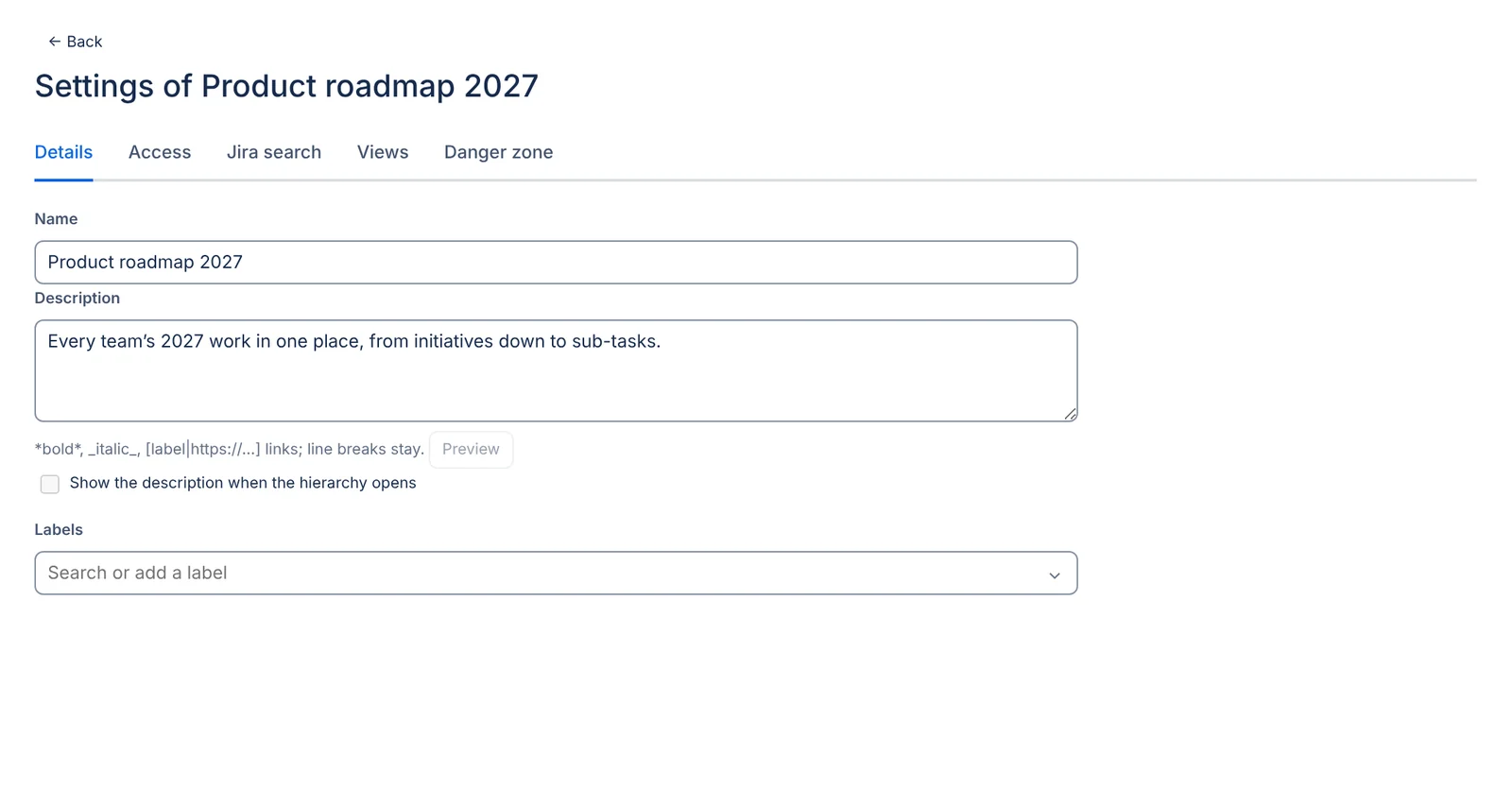
Details
- Name and Description. The description accepts
*bold*,_italic_and[label|https://…]links, and keeps line breaks. Preview shows the result. - Show the description when the hierarchy opens shows it above the toolbar, and Hide puts it away.
- Labels, up to 10, for sorting and filtering hierarchies on the management page.
Access
Who may do what lists access rules. Each rule names Everyone, a group, a project role or a user, and gives a level. Rules apply from top to bottom, and the last one that matches a person decides their level. Use the arrows to reorder them.
A useful pattern is to give Everyone View at the top, and higher levels to a group or a role below it. To shut one group out, put a No access rule for it at the bottom.
For a project role, you pick the project and then one of its roles. When Jira won't say whether a person holds a role in a project, for example because they can't see that project, the rule for that role counts only when it would lower their level. A role never grants more than the app can confirm.
Rule output holds Let people with Edit change rule output by hand. See Changes inside rule output.
Jira search
Find its issues in Jira search makes the hierarchy's issues searchable with issue in treecraftHierarchy(…). When it's on, the tab shows the search for you to copy and lists the tree queries people have searched with, each with Clear. Read Finding a hierarchy's issues in Jira search before you turn it on: once it's on, people who can't open the hierarchy can tell which of the issues they see are in it.
Views
Views on each page chooses which views the hierarchy offers on the app's page, project pages, the board tab and dashboard gadgets, and which one opens by default on each. Only views shared with everyone can be a default.
Danger zone
- Archive this hierarchy keeps everything but leaves the hierarchy out of the list unless Show archived is ticked. Archiving can be undone: untick the option to bring the hierarchy back.
- Delete this hierarchy asks for confirmation, then removes the hierarchy with its rows, rules and write-backs. The issues stay in Jira.
Managing hierarchies
Manage hierarchies lists every hierarchy you can open in one table, with its name and description, owner, your access level and popularity (how many people made it a favorite).
Which hierarchies offers these sets:
| Set | Lists |
|---|---|
| All | Every hierarchy that isn't archived. |
| Needing attention | Hierarchies with an alert for you: a rule build that failed (for people with Automate), or a latest write-back run that failed in whole or in part (for people with Edit). |
| Recent | The hierarchies you opened last, latest first. |
| Favorites | Your favorites. |
| Popular | The most favored hierarchies first. |
| Mine | The hierarchies you own. |
| Archived | Archived hierarchies. |
Filters narrow the list by name or description, by Owner and by Label. With alerts keeps only hierarchies with an alert. With manual changes keeps only hierarchies that have rules and also hold rows placed by hand.
Each row has a star to make it a favorite, Copy, and, for people with Control, Settings.
Copying a hierarchy
Copy makes a new hierarchy from an existing one. Choose what happens to the rules:
- Keep the rules: the copy has the same rules and builds its own results.
- Replace the rules with what they show now: their current results become ordinary rows, and groups become folders.
- Leave the rules out: only the rows placed by hand are copied.
Only people who can change a hierarchy's rules can copy its rules. The copy belongs to you, isn't shared with anyone, and holds only what you can see in the original.
Cloning the issues
Tick Also make new Jira issues for the copy to make a new Jira issue for each issue in the copy. The copy then shows the new issues instead of the originals. A copy makes at most 1,000 new issues. Before you clone, note that:
- Jira sends its usual notifications for each new issue, including to the copied assignees, and the site's automation rules for new issues run.
- Status (each issue starts at the first step of its workflow), resolution, sprint, attachments, comments, work logs, watchers, votes and history are not copied.
- If you keep the rules, their results still show the original issues. Only rows placed by hand get new issues.
If cloning stops part way, open Copy on the original hierarchy again. You can Go on cloning, which first looks for issues already made so that none is made twice, or Delete the clones and the copy. Deleting keeps any new issue that someone has changed since it was made.
Questions about the app? Write to info@plugincraft.ca.