Getting started
Open the app, find your way around its page, and create a first hierarchy.
Where to find the app
Once a Jira admin has installed TreeCraft, it appears in several places in Jira:
- TreeCraft: Issue Hierarchies under Apps in Jira's top navigation. This is the app's own page, where you see every hierarchy you can open.
- A Hierarchies tab on each project, which opens on that project's issues as a tree.
- An In hierarchies panel on each issue, showing which hierarchies hold it and where.
- Open as a hierarchy on boards, and two dashboard gadgets.
The app in Jira describes each of these. If the app tells you that you can't use it here yet, check with your Jira admin, who decides who may use it and in which projects. See Administration.
The app's page
The list on the left, titled Hierarchies, holds:
- New, to create a hierarchy (shown only to people allowed to create them).
- Search issues, which opens a temporary tree from a text search, issue keys or JQL. See query mode.
- Manage hierarchies, a page that lists every hierarchy you can open, with filters.
- Scratchpad, your own private hierarchy for collecting rows.
- Help, the built-in help with every topic and the keyboard shortcuts.
- The hierarchies themselves. The star next to a name makes it a favorite, and favorites stay at the top. Show archived adds the archived ones to the list.
- App settings, for Jira admins and app admins only.
When no hierarchy is open, the welcome page offers New hierarchy, Find issues and Open help. Admins also see their progress through the setup guide and whether the site's license is a trial.
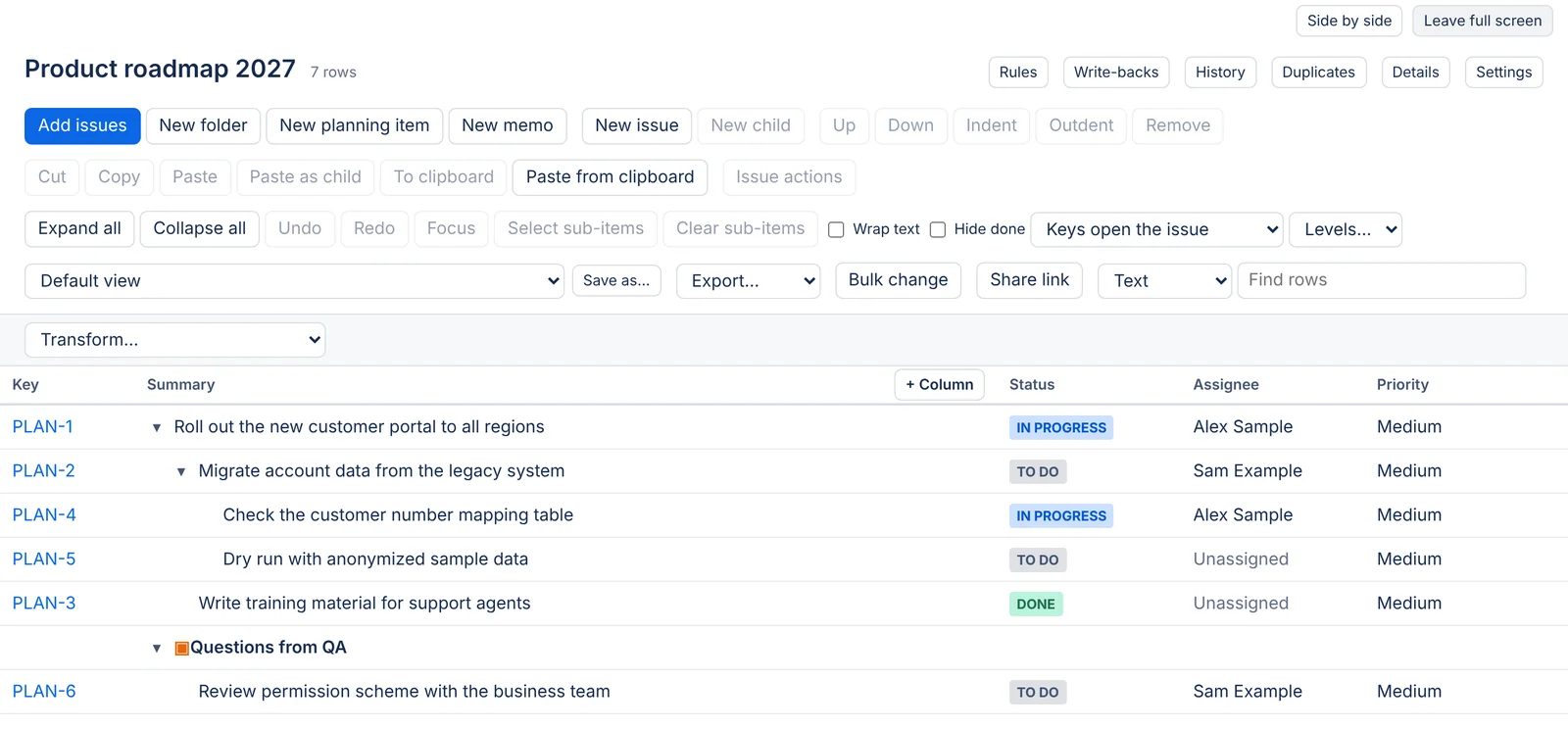
Creating your first hierarchy
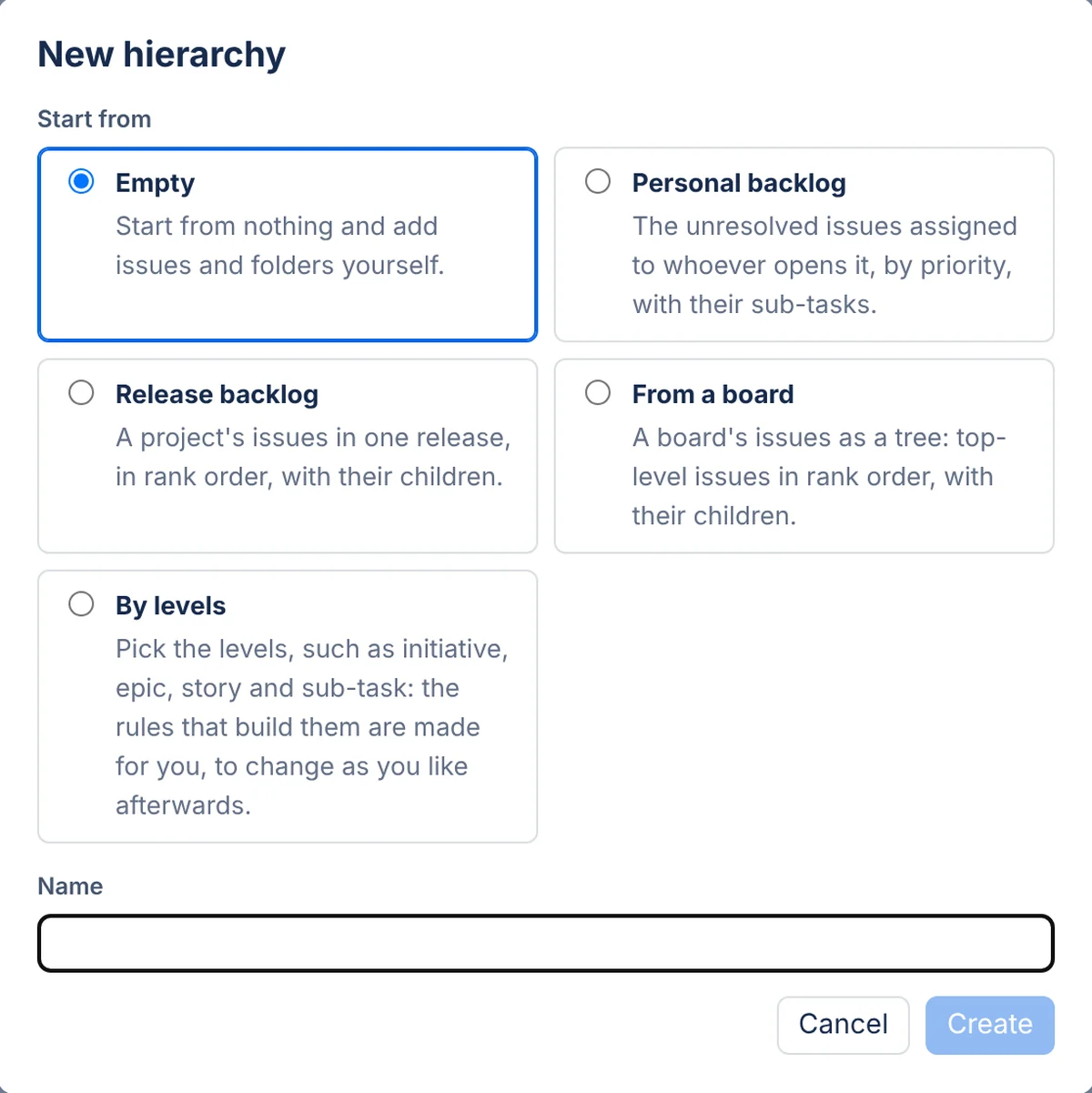
Select New. The New hierarchy dialog asks where to start:
| Start from | What you get |
|---|---|
| Empty | No rules. You add issues and folders yourself. |
| Personal backlog | The unresolved issues assigned to whoever opens it, by priority, with their sub-tasks. Each person sees their own issues, so it takes a little longer to open. |
| Release backlog | A project's issues in one release, in rank order, with their children. You pick the project and then the release. |
| From a board | A board's issues as a tree: top-level issues in rank order, with their children. You pick the board, and the app reads its query. |
| By levels | You pick the levels, such as initiative, epic, story and sub-task, and the app makes the rules that build them. It suggests levels from your site's own issue type hierarchy. |
Each starting point except Empty shows Rules it makes before it creates anything. These are ordinary rules, and you can change them later in the Rules panel.
Narrow with JQL (optional) adds a condition to the query that picks the top-level issues, for example status != Done AND labels = Q4. Children follow their parents. Check asks Jira how many issues match at the top level and warns you when that is more than a single rule can add on your site.
Give the hierarchy a name, add labels if you use them to sort hierarchies, and select Create. The rules build the tree, and from then on they keep it up to date as issues change in Jira.
What to read next
- To shape the tree by hand, read Building a hierarchy.
- To let Jira data fill it, read Rules.
- To add totals, progress and other columns, read Columns.
- To share it with your team, read Access and hierarchy settings.
If your site has no valid license key, or its trial has ended, every hierarchy is read-only until an admin enters a key. See License.
Questions about the app? Write to info@plugincraft.ca.