Administration
The app's settings are on one page in Jira's administration area, under Apps. Jira admins and app admins can also reach it from App settings at the bottom of the list of hierarchies. A menu on the left groups the tools, and the built-in help describes each one and opens it directly.
On this page
Jira admins can use every tool. App admins can use all of them except App admins, Hidden issues in totals and Backup.
| Group | Tools |
|---|---|
| Getting started | Setup guide, License |
| Access | App access, App admins, Automation permissions |
| Behaviour | Rule limits, Jira API points, Working calendar, Defaults, Hidden issues in totals |
| Data and support | Backup, Maintenance, Database size, Support bundle |
Setup guide
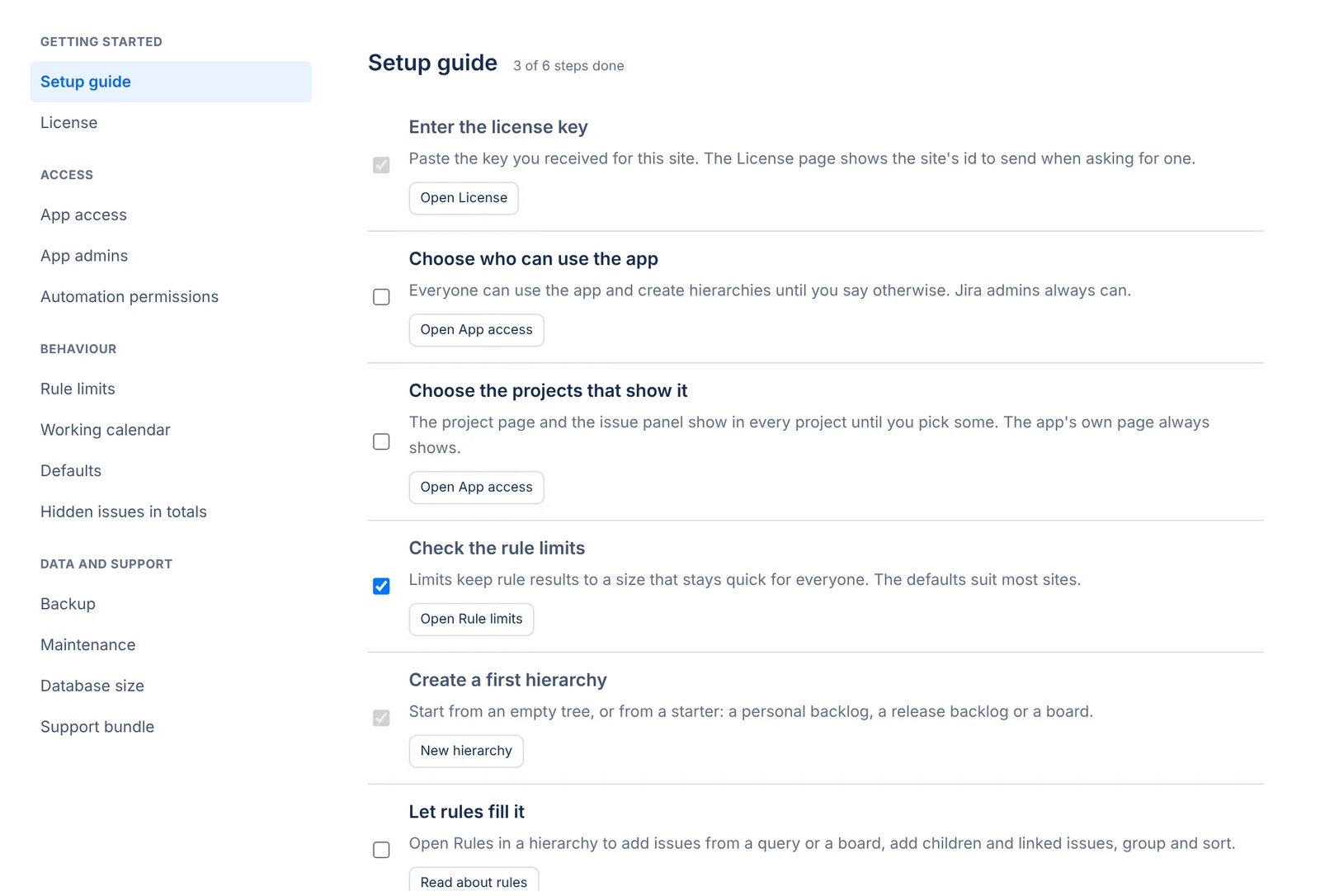
The setup guide lists the first steps for a new site and ticks them off as you go. It detects steps that are already done on the site:
- Enter the license key.
- Choose who can use the app.
- Choose the projects that show it.
- Check the rule limits.
- Create a first hierarchy.
- Let rules fill it.
- Let Jira search find hierarchy issues (optional).
- Put a hierarchy on a dashboard (optional).
The welcome page reminds admins of the remaining steps until they tick Don't remind admins on the welcome page.
License
A license key works on one Jira site. The License page shows This site's id, which you send when you ask for a key. Paste the key in License key and select Save key.
A key is either a full license, which doesn't expire, or a 30-day trial. A site can use three trial licenses. Starting two weeks before a trial ends, admins see a notice with the end date. Without a valid key, or once a trial has ended, every hierarchy is read-only for everyone until someone enters a key. Nothing is deleted.
App access
App access sets three things:
- Who can use the app: Everyone who can use Jira, or Only these people and groups.
- Who can create hierarchies: Everyone who can use the app, or Only these people and groups (if they can use the app).
- Projects that show the app: All projects, or Only these projects. The project tab and the issue panel work only in these projects. The app's own page still shows hierarchies with issues from any project.
Jira admins and app admins can always use the app and create hierarchies, so they can't lock themselves out. Changes reach everyone within a minute. The app stores people, groups and projects by id, so renaming them doesn't break the setting.
App access doesn't limit Jira search with treecraftHierarchy(). Whether search can find a hierarchy is a setting of that hierarchy.
App admins
Jira admins can name people and groups as app admins. App admins manage the app's settings without being Jira admins: rule limits, App access, the working calendar, the setup guide, the support bundle and the license, among others. They can always use the app, but they get no extra access to any hierarchy or issue. Only Jira admins can change this list.
Automation permissions
One table decides who may:
- Use automation (rules and write-backs);
- Change rules;
- Set up write-backs;
- Run and undo write-backs;
- Share saved columns.
Each list only narrows what a hierarchy's own access allows. Changing rules, for example, still requires Automate on the hierarchy. A column ticked for Everyone lets everyone through, which for rules and write-backs means everyone who may use automation. Jira admins and app admins are always allowed. Changes can take up to a minute to apply everywhere.
Rule limits
Limits keep rule results small enough to stay quick for everyone. When a rule reaches a limit, the app keeps what it built so far and shows a notice. People see a row, issues-per-rule, depth or level notice only when they can see at least one of the issues it left out. Changes apply from the next update of each hierarchy.
| Limit | Range | Default |
|---|---|---|
| Rows in one hierarchy | 1,000 to 25,000 | 10,000 |
| Issues one rule may add | 100 to 2,500 | 2,500 |
| Deepest level rules may fill | 2 to 64 | 20 |
| Levels one "add children/links" rule may add | 1 to 20 | 10 |
Whatever the limits are set to, a hierarchy holds at most 2,500 issues and runs at most 30 rules, with a lower cap of 5 on the rules that read every row (see Limits and notices).
Jira API points
Atlassian gives each app an hourly allowance of Jira API points. This page shows how many the app used this hour and in the last hours, by UTC hour, split between people's pages and background work.
Set the Pool to the one that applies: Shared by the app: 65,000 points an hour (Atlassian's default), or This site's own pool (granted by Atlassian) with your Jira edition and the number of Users on the site. Background work may use 80% of the pool, which leaves the rest for people's own pages. Once background work has used its share, or the pool is spent, routine refreshes wait for the next hour. Work that hides or removes issues never waits. The app's own count can be slightly lower than Jira's.
Working calendar
Formulas and the Shift dates write-back follow this calendar. Set the Hours in a working day (0.25 to 24, in quarter hours), the Days in a working week, the Working weekdays and the Holidays. A duration of 1d or 1w then has the length you set here, and workdays_between, add_workdays and is_workday skip the days off. Back to 8h days, 5-day weeks, Monday to Friday resets the calendar.
Defaults
Defaults apply to people who haven't made their own choice, and only when they can open what is chosen:
- Hierarchy the app's page opens on, or none for the last one each person opened.
- Hierarchy the issue panel shows first, or none for the first one that holds the issue.
- Column set each page starts with, for the app's page, project pages and the board tab. You can pick only views shared with everyone.
A project's own default hierarchy is set on the Hierarchy settings page in the project's settings. See Project settings.
Hidden issues in totals
By default, Total columns add up only the issues each person can see. For the number fields you add here, totals also count the issues a person can't see. They count as totals only, and no hidden issue's own value is shown. Issues with a security level are never counted. The app counts what hidden issues add again when someone opens the hierarchy and the last count is more than an hour old.
Before you save, you confirm that you understand one consequence: when a row has a single hidden issue below it, its total shows that issue's value.
Backup
Save a backup puts every hierarchy of the site into one file, with its rows, folders, rules, notes, access and write-backs, along with the site's views, saved columns, presets and app settings. Options:
- With history: the edit log and past write-back runs.
- For another site: adds each issue's key, read from Jira as you, so the backup can be restored on another site. Issues you can't browse are listed without a key and are left out there.
The file holds the private content of every hierarchy: rules, JQL, notes and who may see what. Store it as safely as the site itself. It never holds the license key or any issue's details.
Restore
Choose a backup file, pick the hierarchies to restore, and start. Each one comes back as a new hierarchy next to the existing ones, so nothing is replaced. Keep the names as they were leaves out the "(restored)" suffix. Restored hierarchies start with Jira search off and rebuild their rule results. Write-backs come back as set-ups only, so nothing writes to Jira until someone runs them.
From another site, the app finds issues by their keys, as you see them. Issues that aren't on this site, or that you can't browse, are left out with everything below them. The app lists what it had to clear, such as a rule naming a board that doesn't exist here.
Two more options restore site-wide content:
- Also restore the site library: saved views, saved columns, transform and rule presets.
- Also restore the site settings: each one replaces this site's, including rule limits, App access, the calendar, defaults, automation access, app admins, the setup guide, maintenance and hidden-issue totals. The app asks you to confirm first.
A restore that stopped part way is listed under Incomplete restores, where you can delete it along with what it restored.
Maintenance
Once a day, the app clears what nobody can reach any more, such as favorites, notes and rule results of deleted hierarchies, and asks Jira search to catch up where its index drifted. Leftovers are cleared one day after the app first finds them. Apart from old history, maintenance never removes anything people can still see.
Clear history older than one year deletes past write-back runs and edit-log entries older than a year, every day. It is on by default. If you turn it off, history is kept for good and the app's storage keeps growing. What is deleted can't be brought back.
The page shows the last run and what each job cleared, and has Run now.
Database size
This page shows how much of the site's database limit the app uses, by kind of data: hierarchies and their rows, rules and their results, the copy of Jira issues kept for speed, Jira search, change history, write-backs, views and personal settings, and the app's own records. Show details lists each table.
Support bundle
The support bundle is a file describing how the app is set up and running on this site: versions, settings, counts and recent errors. It holds no issue summaries, field values or email addresses. Show everything in the file lets you read it before you send it. Download it and send it to support with a short description of what happened.
Questions about the app? Write to info@plugincraft.ca.